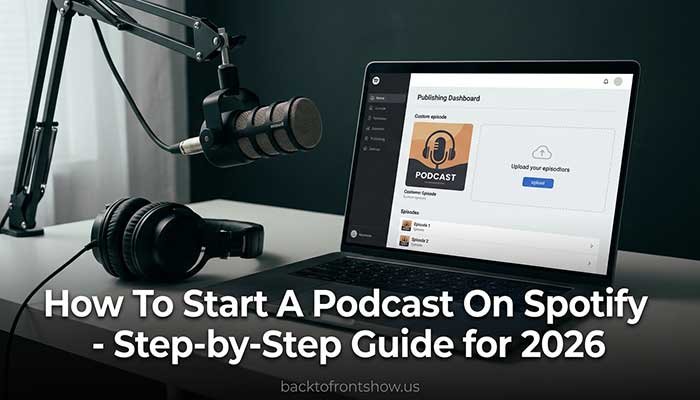
You can start a podcast on Spotify for free by creating a Spotify for Creators account, setting up a new show, uploading a finished audio or video episode, adding your episode details, and publishing it.
If you host your podcast directly with Spotify for Creators, your episodes are automatically made available on Spotify. Spotify currently offers free podcast hosting and supports both audio and video shows.
The important thing to understand is that Spotify is doing two different jobs here:
- It can be the place where people listen to your podcast.
- Spotify for Creators can also host and manage your podcast.
Those aren’t exactly the same thing.
You can host your show somewhere else, such as Buzzsprout, Libsyn, or Podbean, and still submit it to Spotify. Or you can use Spotify for Creators as your host and manage the show from one place.
This guide focuses mainly on the simplest route for a new creator: starting a new show using Spotify for Creators.
I’ve worked with podcast-related content and platforms for more than two years, and one thing I’ve noticed is that beginners often spend too much time worrying about hosting technology before they’ve created their first useful episode. For a new podcaster, I’d keep the setup simple, publish something you’re comfortable putting your name on, and improve the production gradually.
Quick Overview: How To Start A Podcast On Spotify
Here’s the basic process:
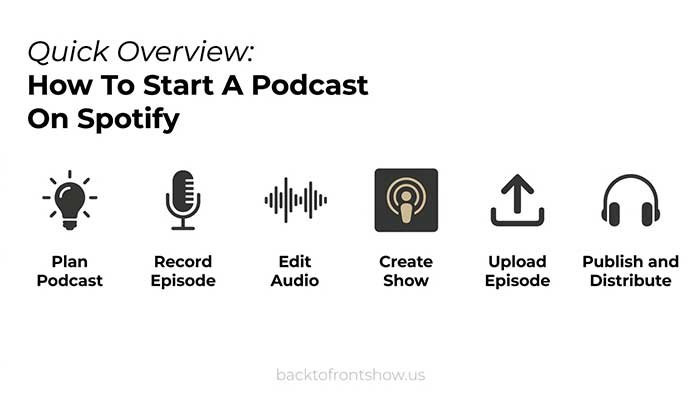
| Step | What You Need To Do |
|---|---|
| 1 | Decide what your podcast will be about |
| 2 | Choose your podcast name and format |
| 3 | Create your branding and cover art |
| 4 | Record your first episode |
| 5 | Edit and export the episode |
| 6 | Create or log in to Spotify for Creators |
| 7 | Create a new show |
| 8 | Upload your audio or video |
| 9 | Add the title, description, and other episode details |
| 10 | Publish the episode |
| 11 | Enable your RSS feed if you want wider distribution |
| 12 | Submit the show to other podcast platforms |
You don’t need expensive podcast equipment to complete those steps.
A decent microphone helps, but your topic, audio clarity, consistency, and usefulness to the listener matter much more when you’re getting started.
What Is Spotify for Creators?
Spotify for Creators is Spotify’s platform for podcast creators.
It can be used to manage audio and video podcasts, upload episodes, view analytics, interact with listeners, customize your show, and access monetization features when you’re eligible.
For creators hosting directly with Spotify, Spotify currently promotes the service as free podcast hosting with episode uploads and distribution tools.
This makes it one of the easiest options for someone asking how to start a podcast on Spotify for free.
Do you have to host your podcast with Spotify?
No.
You have two main options.
Option 1: Host with Spotify for Creators
Spotify hosts your podcast files and automatically makes your show available on Spotify.
Option 2: Host somewhere else
You can use another podcast host and submit or claim your show through Spotify for Creators using your podcast RSS feed.
For a first-time podcaster who wants a simple free setup, hosting with Spotify for Creators can be a practical starting point.
If you already have a podcast hosted elsewhere, however, you don’t necessarily need to move it just to appear on Spotify.
How To Start A Podcast On Spotify Step by Step
Step 1: Decide What Your Podcast Is About
Before opening Spotify for Creators, figure out what you’re actually going to publish.
Your topic should be specific enough that a potential listener can quickly understand why your podcast exists.
For example:
Too broad:
Business
More focused:
A weekly podcast explaining how local service businesses can get more customers
Another example:
Too broad:
Fitness
More focused:
Simple strength-training advice for busy adults over 40
Ask yourself three questions:
- Who is this podcast for?
- What problem or interest does it serve?
- Why should someone come back for another episode?
A clear answer to those questions will make almost every later decision easier, including your show name, episode topics, artwork, description, and marketing.
Step 2: Choose Your Podcast Format
Next, decide what a typical episode will look like.
Common formats include:
- Solo commentary
- Interviews
- Co-hosted conversations
- Educational episodes
- Storytelling
- News or industry commentary
- Question-and-answer episodes
- Video podcasts
You don’t have to lock yourself into one format forever.
What matters is having a repeatable structure.
For example, imagine you’re creating a 20-minute personal-finance podcast.
A simple episode structure might be:
- 60-second introduction
- Explanation of the week’s topic
- Three practical tips
- One real or hypothetical example
- Short recap
- Call to action
That structure gives you something repeatable instead of starting from a blank page every week.
From my experience, repeatability matters more than making your first format clever. If every episode requires an entirely new production process, staying consistent becomes much harder.
Step 3: Pick a Podcast Name
Your podcast name should be:
- Easy to remember
- Easy to pronounce
- Relevant to your subject
- Distinct enough to avoid confusion
- Flexible enough to support future episodes
Avoid making the name unnecessarily complicated just because you want it to sound creative.
Before committing to a name, search Spotify, Google, YouTube, Apple Podcasts, and major social platforms to see whether another established show is already using something similar.
Also think about what the name communicates without additional explanation.
A clear name often helps a new podcast more than an abstract brand name that requires the reader to understand an inside joke.
Step 4: Create Your Podcast Cover Art
Your cover image is one of the first things potential listeners will see.
Keep it simple.
A good podcast cover usually has:
- A clear show title
- Strong contrast
- Large readable text
- A simple visual concept
- Minimal clutter
Remember that podcast artwork frequently appears as a small thumbnail.
Something that looks impressive at full desktop size can become unreadable inside a mobile app.
I usually recommend designing the artwork at a large size, then shrinking it down dramatically before approving it. If the title becomes impossible to read at thumbnail size, simplify it.
Step 5: Plan Your First Few Episodes
Don’t launch with only one vague idea.
Before recording the first episode, write down at least five to ten possible episode topics.
For example, someone launching a beginner gardening podcast could plan:
- How to start your first vegetable garden
- Five vegetables that are easy for beginners
- How often should you water a vegetable garden?
- Common beginner gardening mistakes
- Raised beds vs. in-ground gardens
- How much sunlight do vegetables need?
You don’t have to record all of them at once.
The goal is simply to confirm that your podcast idea can support multiple useful episodes.
Step 6: Record Your First Podcast Episode
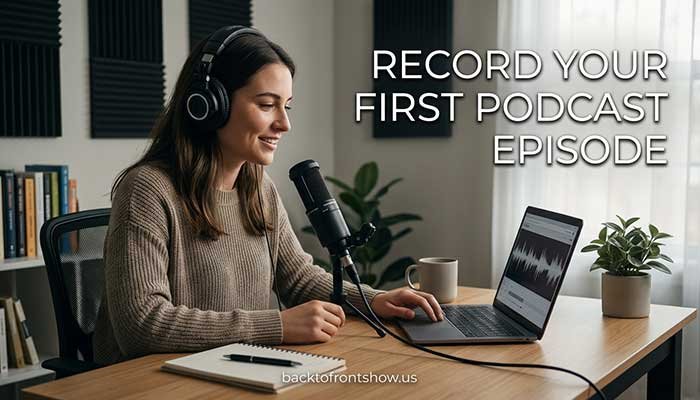
Spotify for Creators is primarily a publishing and management platform rather than a full built-in recording studio.
Spotify’s own recording and editing tools were removed, and Spotify currently points creators toward external recording and editing options, including its Riverside integration.
That means you should generally record your episode before uploading it.
You can use:
- A USB microphone and computer
- Your smartphone
- A dedicated recorder
- Riverside
- Descript
- Audacity
- GarageBand
- Adobe Audition
- Another recording application you prefer
You don’t need an expensive studio to start.
A quiet room and a microphone positioned properly can often make a bigger difference than buying expensive equipment and recording in a noisy, echo-filled space.
Basic recording checklist
Before pressing record:
- Turn off loud fans or appliances if possible.
- Silence phone notifications.
- Close unnecessary computer applications.
- Put the microphone reasonably close to your mouth.
- Make a short test recording.
- Listen for echo, clipping, background noise, or hum.
- Keep water nearby.
- Keep your outline visible.
You don’t have to sound like a radio announcer.
You do need to be understandable.
Step 7: Edit Your Podcast
Editing lets you remove unnecessary mistakes and improve the listening experience.
At minimum, consider removing:
- Long accidental pauses
- Major mistakes
- Distracting background noises
- Repeated sections
- Technical interruptions
- Extremely uneven volume
Don’t assume every breath or pause needs to disappear.
Overediting can make a conversation sound unnatural.
For a beginner, I’d focus on making the episode comfortable to listen to rather than trying to make every sentence technically perfect.
What file types can you upload to Spotify?
For audio episodes hosted with Spotify for Creators, Spotify currently supports:
- MP3
- M4A
- WAV
Audio files must be mono or stereo. Spotify also says there isn’t a fixed audio file-size limit, although larger uploads take longer to process and can be more vulnerable to interrupted connections.
MP3 is usually the easiest format for a typical audio podcast because it provides good quality without producing extremely large files.
Step 8: Create a Spotify for Creators Account
Go to Spotify for Creators and log in using a Spotify account.
If you don’t already have a Spotify account, you can create one.
Once you’re logged in, Spotify lets you either:
- Create a new show
- Find or claim an existing show
For a brand-new podcast, choose Create a new show. Spotify says this route supports audio, video, or a combination of both.
Step 9: Create Your New Podcast
On Spotify for Creators:
- Log in.
- Open your account/avatar menu.
- Choose Add a new show.
- Select Create a new show.
Follow the prompts to set up the show.
You’ll eventually want the basic information ready, including:
- Podcast name
- Podcast description
- Category
- Cover art
- Creator information
Your description should explain what your show is about and who it’s for without stuffing it with keywords.
Example podcast description
Imagine a hypothetical podcast called Weekend Home Fix.
Its description could say:
Weekend Home Fix is a practical home-improvement podcast for homeowners who want to handle simple repairs and upgrades without turning every project into a renovation nightmare. Each week, we break down one project, the tools you’ll need, common mistakes, and when it’s smarter to call a professional.
That description tells the listener what they’ll get.
Step 10: Upload Your First Episode
If you’re using Spotify as your podcast host, uploading an audio episode is straightforward.
On the web version of Spotify for Creators:
- Select New episode.
- Choose Select a file.
- Upload your finished audio file.
On the mobile app, Spotify currently lets you go to the podcast section, tap the add button, and select a file.
After your file uploads, you’ll reach the episode details section.
Step 11: Add Your Episode Details
Give your episode a clear title and useful description.
Spotify also allows additional episode information such as season and episode numbers and episode artwork.
Write a useful episode title
Avoid titles that tell the listener nothing.
For example:
Weak:
Episode 7
Better:
7 Beginner Podcasting Mistakes That Make Your Audio Hard to Listen To
You can still use episode numbers, but don’t make them the only meaningful information in the title.
Write the episode description
A useful description should explain what the listener will learn.
You might include:
- The problem covered
- Main topics
- Guest information, if applicable
- Important links
- Resources mentioned
- A short call to action
Don’t fill the description with repeated search keywords.
Write it primarily for the human deciding whether the episode is worth playing.
Step 12: Publish Your Podcast On Spotify
Spotify lets you either publish an episode immediately or schedule it for later.
According to Spotify’s current publishing documentation, you can select Now to publish immediately or choose Schedule and set a future publication time.
You’ll also need to verify your account before publishing your first episode.
Once published, a show hosted with Spotify for Creators is automatically available on Spotify.
And that’s the core answer to how to make a podcast on Spotify.
But there’s another important step if you want your podcast to reach people outside Spotify.
How Does the Spotify Podcast RSS Feed Work?
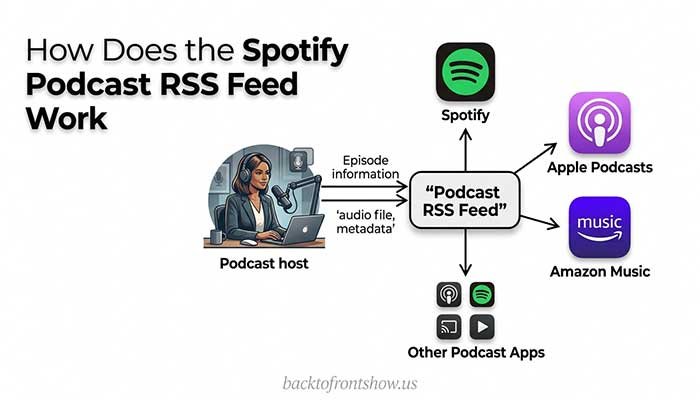
An RSS feed is the technical feed that contains information about your podcast and its episodes.
It can include things such as:
- Podcast title
- Descriptions
- Artwork
- Episode information
- Audio file locations
If you’re hosting with Spotify for Creators, Spotify creates your RSS feed after you publish your first episode.
To find it:
- Log in to Spotify for Creators.
- Open Settings.
- Go to Availability.
- Find RSS Distribution.
Spotify notes that the RSS section won’t appear until you’ve published your first episode.
Do You Need an RSS Feed To Publish On Spotify?
It depends on where your podcast is hosted.
If Spotify hosts your podcast
You don’t need to manually submit an RSS feed to Spotify.
Your show is automatically published on Spotify.
If another company hosts your podcast
You’ll normally use the RSS feed provided by your host to submit or claim your show on Spotify.
Spotify’s current workflow asks creators with externally hosted shows to select Find an existing show, choose the external hosting option, and enter the podcast RSS feed or Spotify show URL.
Spotify then uses the email address associated with the RSS feed to help verify ownership.
How To Submit A Podcast To Spotify If You Use Another Host
Already using a service such as Buzzsprout, Libsyn, Podbean, Captivate, Transistor, or another podcast host?
You don’t need to create a duplicate podcast.
Instead:
- Get your podcast RSS feed from your host.
- Sign in to Spotify for Creators.
- Choose Find an existing show.
- Select the option indicating that your show is hosted somewhere else.
- Enter your RSS feed or Spotify show URL.
- Complete ownership verification.
Spotify supports podcasts from a long list of external hosting platforms.
Once your show is claimed, Spotify for Creators can provide access to tools such as analytics, listener comments, polls, and show customization, depending on the feature and account.
Can You Start A Podcast On Spotify For Free?
Yes.
Spotify currently describes Spotify for Creators podcast hosting as free and promotes free hosting for audio and video podcasts.
That doesn’t mean starting a podcast always costs absolutely nothing.
You may still choose to spend money on:
- Microphones
- Headphones
- Recording software
- Editing software
- Remote recording services
- Podcast artwork
- Music licensing
- Website hosting
- Marketing
But none of those purchases are required simply to open a Spotify for Creators account and host your show there.
A practical low-cost starter setup
For a beginner, a reasonable setup could be:
| Item | Beginner Approach |
|---|---|
| Recording device | Existing computer or smartphone |
| Microphone | Existing device or entry-level USB mic |
| Editing | Free or low-cost software |
| Podcast hosting | Spotify for Creators |
| Cover art | DIY design tool or custom design |
| Publishing | Spotify for Creators |
| Promotion | Existing social accounts/email list |
You can upgrade when the podcast gives you a reason to upgrade.
Buying $1,000 of equipment before you’ve recorded an episode won’t make it easier to choose good topics or become a better host.
How To Distribute Your Spotify Podcast To Apple Podcasts And Other Apps
This is one area that can confuse beginners.
Hosting with Spotify does not mean Spotify automatically submits your show to every podcast directory.
Spotify says shows hosted on its platform are automatically made available on Spotify, but creators need to submit the show themselves to other services such as Apple Podcasts and Amazon Music.
The process generally looks like this:
- Publish your first episode.
- Open Settings > Availability.
- Enable your RSS feed.
- Copy the RSS feed URL.
- Submit it to the podcast platforms you want to use.
Spotify currently provides instructions for platforms including Apple Podcasts, Amazon Music, Castbox, Goodpods, iHeartRadio, Overcast, Pocket Casts, and RadioPublic.
Important RSS privacy warning
Spotify notes that enabling your RSS feed can make the email address associated with the feed publicly visible.
For that reason, I’d consider using a dedicated podcast or business email address rather than an email address you prefer to keep private.
How To Create A Video Podcast On Spotify
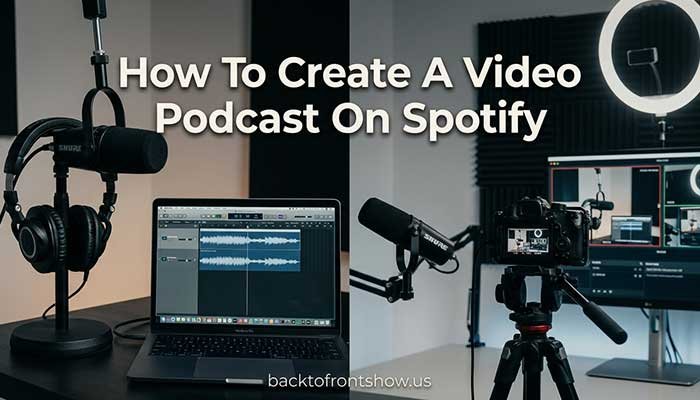
Spotify also supports video podcasts.
If your show is hosted with Spotify for Creators, you can upload video through the Spotify for Creators website.
The basic workflow is:
- Record your video externally.
- Edit the video.
- Log in to Spotify for Creators on the web.
- Select New Episode.
- Upload the video file.
- Complete the episode information.
- Publish it.
Spotify does not currently provide its old built-in recording/editing experience, so you’ll generally create your finished video using another tool before uploading it.
For video uploads, Spotify recommends an MP4 container, files under 10 GB, and episodes under four hours, although its compatibility limits are broader than those recommendations.
Spotify-hosted video is particularly useful if video is a major part of your content strategy.
Keep in mind that video availability can differ outside Spotify. Spotify’s documentation explains that video episodes distributed through its RSS system may appear as audio-only on other podcast platforms.
Pros And Cons Of Spotify Podcast Hosting
Pros
Free hosting
Spotify currently provides free podcast hosting, which removes one of the recurring costs new creators often face.
Audio and video support
You can publish audio or video content through the platform.
Automatic Spotify publishing
If Spotify hosts your show, you don’t need to separately submit that show to Spotify.
Analytics
Spotify for Creators provides analytics that can help you understand how your content performs and learn more about your audience.
Listener engagement tools
Creators can access features such as comments and other Spotify-specific audience tools.
Monetization opportunities
Eligible shows may be able to use Spotify’s monetization features, including the Spotify Partner Program and subscriptions in supported markets. Eligibility rules apply.
Cons
You need separate recording/editing software
Spotify for Creators is no longer a complete built-in recording and editing environment.
Other directories require extra setup
Spotify doesn’t automatically submit your hosted show to every other podcast platform.
RSS email privacy
Enabling RSS distribution can publicly expose the email address listed in the feed.
Monetization isn’t automatic
Creating a show doesn’t mean you’ll immediately earn money. Spotify monetization programs have location and eligibility requirements.
Spotify Podcast Monetization In 2026
Starting a podcast and monetizing a podcast are two separate steps.
Spotify currently offers creator monetization options for eligible shows and markets.
For example, Spotify’s Partner Program currently lists eligibility requirements including:
- At least 1,000 Spotify audience members in the previous 30 days
- At least 2,000 Spotify hours consumed in the previous 30 days
- At least three published episodes
The program is also limited to eligible creators in supported markets, so always check the current rules directly in your Spotify for Creators account before planning around monetization.
Spotify also offers podcast subscriptions in supported countries and integrations with some external membership platforms.
These requirements and programs can change, so I wouldn’t build a new podcast business plan around a specific monetization threshold without checking Spotify’s current documentation first.
What Should Your First Spotify Podcast Episode Be About?
Your first episode doesn’t need to be your life story.
It should give the listener a reason to care about the show.
A simple structure could be:
Opening
Tell the listener what the episode will help them understand.
Main content
Deliver one useful topic.
Brief show introduction
Explain what the podcast will cover going forward.
Next step
Tell people what they should do next—follow the show, listen to the next episode, visit a resource, or send you a question.
For example, if you’re launching a podcast about freelancing, your first episode could be:
How To Find Your First Freelance Client Without Using a Freelance Marketplace
That’s more useful to a potential listener than:
Welcome to My New Podcast — Episode 1
The listener is usually more interested in what you’ll do for them than in the fact that you’ve launched something new.
Common Mistakes To Avoid When Starting A Spotify Podcast
1. Waiting for perfect equipment
You can spend months researching microphones without publishing anything.
Start with acceptable audio and upgrade when you understand what your actual limitations are.
2. Choosing a topic that’s too broad
Trying to create a show for everyone usually makes it harder for anyone to understand why they should listen.
3. Recording without a plan
You don’t necessarily need a word-for-word script, but an outline can prevent the episode from wandering.
4. Ignoring audio quality
Listeners may tolerate simple production.
They’re much less likely to tolerate audio they can’t understand.
5. Publishing once and disappearing
A podcast grows through repeated publishing, not merely by existing in Spotify’s directory.
6. Obsessing over episode length
There’s no universal ideal podcast length.
Make the episode long enough to deliver the value you promised and short enough to avoid unnecessary repetition.
7. Forgetting other podcast platforms
If Spotify hosts your show, consider whether you also want distribution through Apple Podcasts, Amazon Music, and other podcast apps.
8. Expecting instant monetization
Your first objective should usually be creating a useful show people genuinely want to return to.
Revenue becomes easier to think about once you have an audience.
Beginner Checklist: Publish Your First Spotify Podcast
Before publishing, check the following:
- My podcast has a clear topic.
- I know who the intended listener is.
- My show has a name.
- I created cover artwork.
- I planned several future episode ideas.
- I recorded my first episode.
- I listened to the entire finished episode.
- The audio is clear enough to understand.
- I exported a supported file type.
- I created my Spotify for Creators account.
- I created my show.
- I added an accurate show description.
- I uploaded my episode.
- I wrote a clear episode title.
- I added useful show notes.
- I completed Spotify’s content checks.
- I verified my Spotify account.
- I published or scheduled the episode.
- I checked the live episode from a listener’s perspective.
- I decided whether to enable RSS distribution.
- I have a plan for episode two.
Is Spotify for Creators Good for Beginners?
For many beginners, yes.
The main reasons are simple:
- Hosting can be free.
- Publishing to Spotify is straightforward.
- Audio and video are supported.
- Analytics are built into the creator platform.
- You can later distribute the RSS feed to other podcast apps.
It isn’t your only option, and someone who needs specialized hosting, advertising, private podcasting, team workflows, or advanced distribution features may eventually prefer a dedicated paid host.
But if your biggest question is simply how to create a podcast on Spotify without turning the technical setup into a major project, Spotify for Creators is one of the easiest places to begin.
From my experience working around podcasting topics, I’d spend less time trying to choose the “perfect” hosting stack and more time making the first three episodes useful. You’ll understand what you need from a hosting platform much better after you’ve actually gone through the publishing process.
What To Do After Your Podcast Goes Live
Publishing isn’t the finish line.
Once the first episode is live:
Listen to it on Spotify
Check your own episode from a listener’s perspective.
Look for:
- Incorrect title
- Wrong artwork
- Formatting problems
- Audio issues
- Broken links
- Description errors
Share the episode
Promote it where your intended listeners already spend time.
That might include:
- An email list
- TikTok
- YouTube
- Facebook groups
- Reddit communities where self-promotion is permitted
- Your website
- Communities related to your niche
Don’t simply post, “New podcast episode!”
Give people a reason to care.
Instead of:
Episode 3 is live!
Try:
If your podcast gets downloads but few people finish the episode, these five retention mistakes may be part of the problem. I broke them down in this week’s episode.
Watch your analytics
Spotify for Creators provides performance and audience data that can help you understand how people interact with your show.
Don’t overreact to tiny numbers after one episode.
Look for patterns as you build a larger catalog.
Publish the next episode
Consistency gives both the audience and you more opportunities to understand what works.
One episode is an experiment.
A collection of episodes starts becoming a podcast.
Final Thoughts
If you want to know how to start a podcast on Spotify, the technical process is easier than it first appears.
Create your show in Spotify for Creators, record and edit your episode using the tools you prefer, upload the finished audio or video, add the episode information, and publish it.
If Spotify hosts the podcast, the show is automatically published on Spotify. You can then enable your Spotify podcast RSS feed and submit the show to other podcast platforms if you want broader distribution.
The harder part isn’t clicking the Publish button.
It’s choosing topics people care about, creating episodes worth finishing, and continuing long enough to learn what your audience actually responds to.
Start simple.
Your first podcast doesn’t need to sound like a production from a major media company. It needs to be clear, useful, and good enough that you’re willing to create the next episode.