Yes, you can start a podcast for free.
You don’t need a $300 microphone, a soundproof studio, paid editing software, or an expensive podcast hosting plan. If you already have a smartphone or computer, you have enough equipment to record your first episode.
A practical $0 setup can look like this:
| What You Need | Free Option |
|---|---|
| Microphone | Phone or computer microphone |
| Recording | Built-in voice recorder or Audacity |
| Editing | Audacity |
| Podcast hosting | Spotify for Creators |
| Cover art | Canva free templates or another free design tool |
| Distribution | RSS feed submissions to major podcast platforms |
| YouTube | YouTube Studio or RSS delivery where available |
| Total required cost | $0 |
Spotify currently describes Spotify for Creators as a free podcast hosting service and offers unlimited hosting. Audacity is also free and open-source recording and editing software for Windows, macOS, and Linux.
The important thing is not buying equipment first. It’s creating a show people actually want to hear.
Here’s how to do it step by step.
Step 1: Decide What Your Podcast Will Be About
Before worrying about microphones or editing, answer one question:
Why would someone listen to your podcast instead of the thousands of alternatives available to them?
Your topic doesn’t have to be completely original. It does need to be specific enough that listeners understand what they’re getting.
For example, “a podcast about business” is extremely broad.
These are clearer:
- A podcast about starting a local service business
- Interviews with first-time startup founders
- A weekly podcast about personal finance for college students
- A podcast about growing an Etsy business
- A show reviewing new horror movies
- A podcast teaching beginner home cooks
A useful formula is:
Topic + specific audience + reason to listen
For example:
“A weekly podcast helping first-time freelancers find clients and build a sustainable business.”
Now both you and the listener know what the show is supposed to accomplish.
Read More: Best Podcast Recommendations: Top Podcasts Worth Listening To in 2026
Choose Something You Can Talk About Repeatedly
A good podcast topic needs enough depth for more than three episodes.
Before committing, write down at least 15 potential episode ideas.
If getting to 15 feels almost impossible, the concept may be too narrow.
If you immediately come up with 30 or 40 ideas, that’s a much stronger sign.
From my experience working with podcast-related content for more than two years, one of the most practical things a beginner can do is think about consistency before equipment. A basic microphone can be upgraded later. A podcast idea you don’t enjoy producing is much harder to fix.
Step 2: Pick a Podcast Format
You don’t need a complicated format.
Most beginner podcasts fit into a few categories.
Solo Podcast
You speak directly to the listener.
This works well for:
- Education
- Commentary
- Storytelling
- Tutorials
- Personal experiences
- Industry analysis
Advantages: Simple scheduling and complete control.
Disadvantages: You carry the entire episode yourself.
Interview Podcast
You bring in a different guest for some or all episodes.
This works well for:
- Business
- Careers
- Entrepreneurship
- Entertainment
- Sports
- Expert discussions
The biggest challenge isn’t recording. It’s consistently finding, scheduling, and preparing good guests.
Co-Hosted Podcast
Two or more regular hosts talk together.
This can make conversations feel more natural, but your publishing schedule depends on multiple people being available.
Narrative or Documentary Podcast
These shows combine narration, interviews, research, sound design, and editing.
They can be excellent, but they generally require more production time.
If you’re starting a podcast with no money and little editing experience, I usually recommend beginning with either a solo show or a simple interview format.
You can always make production more ambitious later.
Step 3: Choose a Podcast Name
A strong name should be:
- Easy to remember
- Easy to pronounce
- Easy to spell
- Relevant to your topic
- Distinctive enough to find in search
Avoid making the name so clever that nobody can tell what the podcast is about.
For example, a name like The Weekend Mic could mean almost anything.
Something like The First-Time Freelancer Podcast immediately communicates the subject.
Before settling on a name, search:
- Spotify
- Apple Podcasts
- YouTube
- Major social platforms
You’re checking whether another established show or brand already uses a confusingly similar name.
Read More: Apple Podcasts: How to Listen, Find Shows & Use the App
Step 4: Plan Your First Few Episodes
Don’t launch with only one idea.
Plan at least three episodes before recording your first one.
A simple episode outline could look like this:
- Opening hook
- Short introduction
- Main topic
- Two or three key points
- Example or story
- Actionable takeaway
- Closing
You do not need to write every word.
In fact, reading a full script can make a conversational podcast sound stiff unless you’re comfortable with scripted delivery.
For beginners, bullet points often work better.
Example Episode Outline
Imagine you’re making a podcast about freelancing.
Episode: How to Find Your First Freelance Client
Your notes might include:
- Why beginners struggle to get clients
- Pick one service
- Create two sample projects
- Ask people in your existing network
- Use targeted outreach
- Don’t send generic messages
- What to do after your first response
- One action listeners should take today
That’s enough structure to keep the episode focused without making it sound like you’re reading an essay.
Step 5: Use a Free Podcast Equipment Setup
You can buy podcast equipment later.
For your first episodes, use what you already have.
Option 1: Record With Your Smartphone
Modern smartphones can produce perfectly usable spoken-word recordings when used correctly.
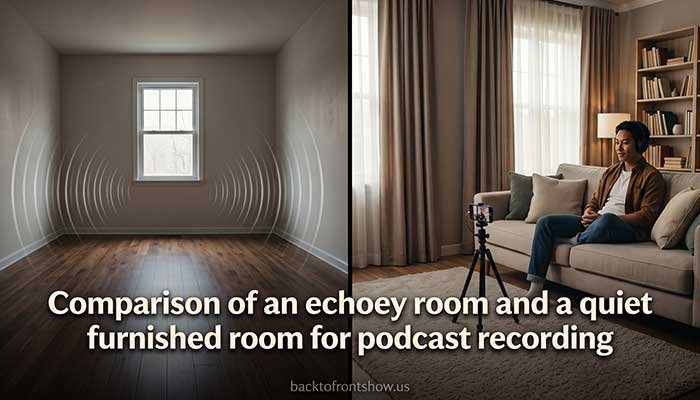
The room often matters more than the microphone.
Choose a space with:
- Carpet or rugs
- Curtains
- Furniture
- Soft surfaces
- Minimal outside noise
Avoid large empty kitchens, bathrooms, and rooms with bare walls because they create more echo.
Place your phone fairly close to your mouth rather than several feet away.
Spotify’s current creator guidance specifically suggests using a device’s built-in voice recorder as a simple way to start recording.
Option 2: Use Your Computer
A laptop microphone can also work, particularly for practicing and testing your podcast idea.
If you already own wired earbuds or headphones with a built-in microphone, test those too.
Record 30 seconds with each option and compare them.
Don’t assume the most expensive-looking device will automatically sound better.
Improve Your Recording Without Spending Money
Try these simple changes:
- Turn off fans and noisy air conditioners if practical.
- Close windows.
- Silence phone notifications.
- Move away from refrigerators and computer fans.
- Put soft furnishings around the recording area.
- Keep the microphone position consistent.
- Record a short test before the full episode.
- Wear headphones when recording remote conversations.
One mistake I’ve noticed beginners make is trying to repair terrible sound during editing. Editing can improve audio, but recording clean audio in the first place is much easier.
Step 6: Record Your Podcast for Free
You have several zero-cost ways to record.
Built-In Voice Recorder
This is the easiest option.
Your phone, tablet, or computer probably already includes basic recording software.
For a solo podcast, that’s enough to begin.
Audacity
For more control, Audacity is one of the strongest free podcast recording software options.
Audacity states that it is free and open source and supports Windows, macOS, and Linux. It can record audio and export common formats such as MP3 and WAV.
Audacity is particularly useful if you want to:
- Record directly into your computer
- Cut unwanted sections
- Adjust volume
- Add multiple audio tracks
- Apply basic audio processing
- Export a finished MP3
You don’t need to learn every feature.
For a beginner podcast, learn how to record, cut, adjust levels, and export. That’s enough.
Recording Remote Guests
Remote interviews require a little more planning because each person’s internet connection and microphone can affect the result.
Spotify for Creators currently integrates with Riverside for browser-based remote audio/video recording and editing. Spotify notes that its old built-in recording and episode editing tools are no longer available, so don’t follow older tutorials that tell you to record directly with those retired Spotify tools.
Spotify guidance on recording and editing episodes
Free-plan limits for third-party remote-recording services can change, so check the current restrictions before depending on one for an ongoing show.
Step 7: Edit Your Podcast for Free
You don’t need radio-level production.
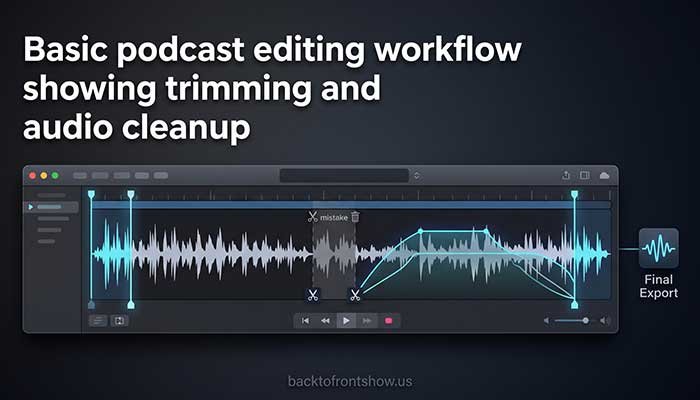
The goal of beginner editing is to remove distractions and make the conversation comfortable to hear.
Audacity works well as free podcast editing software.
A simple editing process is:
- Import or open your recording.
- Remove long silence at the beginning and end.
- Cut obvious mistakes or interruptions.
- Remove unusually long pauses where necessary.
- Balance major volume differences.
- Listen through the episode.
- Export the finished audio.
Spotify for Creators currently accepts audio uploads including MP3, M4A, and WAV.
For a straightforward spoken-word show, MP3 is usually a practical final format.
Don’t Overedit Your Voice
You don’t have to remove every:
- “Um”
- Breath
- Pause
- Repeated word
- Tiny mistake
Trying to make human speech sound perfectly polished can make an episode feel unnatural and can dramatically increase editing time.
Remove things that distract the listener.
Leave normal conversation alone.
That’s an approach I find much more sustainable for beginners.
Step 8: Create Podcast Cover Art for Free
Your podcast needs recognizable square artwork.
You can create it yourself using a free design tool such as Canva, which offers customizable podcast cover templates.
Keep the design simple.
A good podcast cover usually needs:
- Podcast name
- Clear typography
- Strong contrast
- One recognizable visual idea
- Very little unnecessary text
Remember that listeners often see podcast artwork as a tiny image on a phone.
A complicated design can become unreadable.
Recommended Artwork Size
Apple Podcasts currently recommends a 3000 × 3000 pixel show cover. For RSS-delivered shows, it accepts artwork from 1400 × 1400 to 3000 × 3000 pixels, with the larger size preferred. Apple accepts PNG or JPG show artwork and requires a solid background rather than transparency.
Using a 3000 × 3000 square image is therefore a sensible starting point.
Step 9: Choose Free Podcast Hosting
Recording a podcast and hosting a podcast are different.
Your audio files need to live somewhere online. Your host also creates the RSS feed that podcast apps use to retrieve your episodes.
Spotify for Creators
For someone trying to start a podcast for free, Spotify for Creators is one of the most straightforward options.
Spotify currently advertises:
- Free podcast hosting
- Unlimited hosting
- Audio and video uploads
- Podcast analytics
- RSS distribution tools
Spotify for Creators podcast hosting
There’s an important detail, though.
If you host through Spotify for Creators, your show is automatically available on Spotify, but Spotify says you need to enable your RSS feed and submit the show yourself to other listening platforms such as Apple Podcasts. Spotify does not automatically submit it everywhere on your behalf.
That’s worth knowing because some older guides describe podcast distribution as completely automatic.
What Is an RSS Feed?
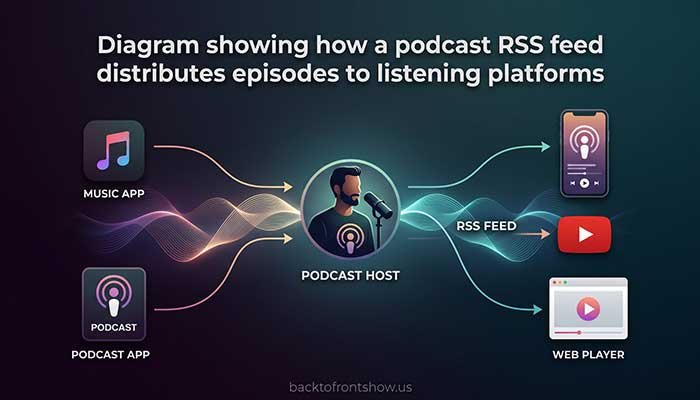
Think of your podcast’s RSS feed as the information source that podcast apps read.
It includes things such as:
- Podcast title
- Description
- Episode titles
- Episode descriptions
- Audio file locations
- Artwork
When you publish a new episode through your host, your RSS feed updates.
Podcast directories using that feed can then recognize the new episode.
Spotify for Creators generates the RSS feed after you publish your first episode.
One Privacy Detail to Know
Spotify currently warns that enabling its RSS distribution feature can make the email address in your RSS feed publicly visible.
Consider using a dedicated podcast contact email rather than a personal email address you would prefer to keep private.
Step 10: Upload Your First Episode
Before publishing, prepare:
- Episode audio
- Episode title
- Episode description
- Podcast artwork
- Show description
Your episode title should explain what the episode is about.
Compare:
Episode 3
with:
How to Find Your First Freelance Client
The second gives a new listener a reason to click.
Your description can briefly explain:
- What the episode covers
- Who it’s for
- Important topics discussed
- Relevant resources
Don’t turn the description into keyword spam.
Write for a person deciding whether the episode is worth their time.
Step 11: Submit Your Podcast to Apple Podcasts
Your hosting company provides the RSS feed.
You can then submit that feed to podcast directories.
Apple allows creators using third-party hosting to submit an RSS feed through Apple Podcasts Connect. Apple validates the feed, and the show must go through its review process before becoming available in the Apple Podcasts catalog.
Apple Podcasts: Submit a new show
You generally don’t need to upload each new audio file separately to Apple Podcasts after your RSS-based show is set up.
You continue publishing through your podcast host, and the RSS feed carries your updates.
Step 12: Put Your Podcast on YouTube
YouTube has become another useful place to publish podcast content.
There are two main approaches.
Create a Podcast in YouTube Studio
On YouTube, a podcast is organized as a podcast-designated playlist, with episodes represented as videos.
YouTube says podcast content may receive features such as:
- Availability in YouTube Music
- Podcast badges
- Podcast discovery
- Recommendations
- Improved search visibility
YouTube: Create a podcast in YouTube Studio
Deliver an Audio Podcast Through RSS
YouTube also supports RSS feed delivery for eligible creators and regions, including the United States.
When an audio-first RSS feed is connected, YouTube can create a static-image video using the podcast artwork and automatically upload selected podcast episodes.
YouTube podcast RSS delivery guide
YouTube does not distribute that podcast to other platforms, so your regular podcast RSS distribution still matters.
Step 13: Be Careful With Podcast Music
You do not need intro music to have a professional podcast.
A clean spoken introduction is completely fine.
If you do use music, don’t simply download a popular song and place it behind your intro.
“Free” music found online does not automatically mean you’re allowed to use it in a podcast.
Check the actual license and whether it allows:
- Podcast use
- Commercial use if you plan to monetize
- Editing
- Distribution across the platforms where your show will appear
YouTube, for example, warns creators that some third-party “royalty-free” licenses may not give the necessary rights for all uses.
When in doubt, use original audio or skip music entirely.
Step 14: Publish on a Schedule You Can Maintain
A podcast doesn’t have to be weekly.
Choose a schedule you can realistically follow.
Possible schedules include:
- Weekly
- Every other week
- Twice per month
- Monthly
- Seasonal
Consistency matters more than choosing the most aggressive schedule.
If a weekly show becomes stressful after four episodes, switching to every other week is better than quitting completely.
I usually recommend beginners create at least two finished episodes before launching. That gives you a little breathing room while you’re learning the publishing process.
Step 15: Promote the Podcast Without Spending Money
You don’t need paid ads when you’re starting.
Begin with the audience and platforms you already have.
Tell People You Know
Share the show with:
- Friends
- Professional contacts
- Existing customers
- Newsletter subscribers
- Relevant communities where self-promotion is allowed
Don’t just write:
“Check out my podcast.”
Explain why a specific episode may be useful.
For example:
“I published an episode explaining five ways new freelancers can find their first client without using paid ads.”
That’s much more compelling.
Turn Episodes Into Short Content
One podcast episode can become:
- Short video clips
- LinkedIn posts
- X posts
- Instagram Reels
- YouTube Shorts
- TikTok clips
- Quote graphics
- Email newsletter content
- Blog posts
You don’t need to use every platform.
Pick one or two places where your target audience already spends time.
Feature Guests Who Naturally Share
If you interview people, make sharing easy.
Give a guest:
- Episode link
- Short description
- One or two clips
- Artwork
Don’t pressure guests to promote the show. Just remove unnecessary work if they choose to share it.
A Complete $0 Podcast Setup
Here’s one simple setup that requires no new purchases:
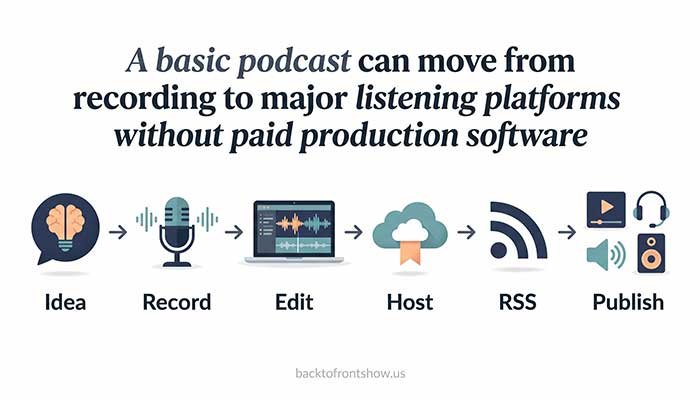
| Task | Tool |
|---|---|
| Record solo episodes | Smartphone voice recorder |
| Record on computer | Audacity |
| Edit audio | Audacity |
| Create artwork | Canva |
| Host podcast | Spotify for Creators |
| Publish to Spotify | Spotify for Creators |
| Submit to Apple Podcasts | Apple Podcasts Connect |
| Publish on YouTube | YouTube Studio/RSS delivery |
| Equipment | Phone or computer you already own |
| Required upfront cost | $0 |
This isn’t the only free setup.
It’s simply one of the easiest combinations for someone who wants to create a podcast without making a financial commitment first.
When Should You Start Spending Money?
Don’t upgrade because other podcasters have expensive equipment.
Upgrade when you understand what problem you’re trying to solve.
Consider Buying a Microphone When:
- Your current microphone has obvious noise problems.
- You publish consistently.
- You’re confident you’ll continue podcasting.
- Better sound would meaningfully improve the show.
Consider Paid Software When:
- Editing takes too long.
- You need advanced remote recording.
- You need automatic transcription or production features.
- Free-plan limitations interfere with your workflow.
Consider Paid Hosting When:
- You need features your current host doesn’t provide.
- Your business requires particular analytics or monetization tools.
- You manage multiple shows or a larger podcast operation.
Starting free lets you discover which upgrades actually matter instead of buying equipment based on guesswork.
Common Mistakes When Starting a Free Podcast
Buying Gear Before Publishing Anything
A $400 setup doesn’t guarantee an interesting podcast.
Record a few episodes first.
Choosing a Topic That’s Too Broad
“Health,” “business,” and “sports” aren’t really podcast concepts by themselves.
Give the audience a clearer reason to listen.
Waiting for Perfect Audio
Your first episode probably won’t sound like a major studio production.
That’s okay.
Aim for understandable, comfortable audio rather than perfection.
Recording in an Echoey Room
A cheaper microphone in a quiet, soft room can sometimes produce more pleasant spoken audio than expensive equipment used in a terrible recording environment.
Making Episodes Too Long
There is no required podcast length.
Don’t turn a useful 18-minute idea into a 60-minute episode just because another podcast releases hour-long shows.
Using Copyrighted Music Without Checking Permission
This creates unnecessary risk and may cause distribution or monetization problems.
Publishing Once and Disappearing
You learn podcasting by making podcasts.
Your production process becomes easier after you repeat it.
A Simple Beginner Launch Checklist
Before launching your podcast, make sure you have:
- A clear podcast topic
- A specific target listener
- A podcast name
- At least 10–15 future episode ideas
- A simple episode format
- Podcast cover art
- A quiet place to record
- Recording software
- Editing software
- A podcast hosting account
- Your first finished episode
- A podcast description
- Your RSS feed enabled
- Apple Podcasts submission completed
- YouTube setup if you want to publish there
- A realistic publishing schedule
You can complete every essential item on that list without buying podcast equipment.
Can You Really Make a Good Podcast for Free?
Yes.
Free tools are capable enough to create a genuinely useful podcast.
What free tools can’t provide is a good topic, clear communication, useful episodes, consistency, or an understanding of your audience.
Those are the parts that matter most.
If you have a phone or computer, start with what you already own. Record a short test episode, listen to it, fix the biggest problems, and repeat.
After you’ve published consistently and know you enjoy podcasting, you’ll have a much better idea of whether spending money would actually improve your show.
You don’t need to build the perfect podcast studio before episode one.
You need to make episode one.