How To record a podcast at home, choose a quiet, furnished room, connect a microphone to your computer or phone, select that microphone in your recording software, set a safe input level, record a short test, and monitor the session with headphones.
You don’t need a professional studio. For most beginners, a dependable home podcast recording setup includes:
- A quiet room with soft furnishings
- A USB microphone or smartphone
- Wired headphones
- A stable microphone stand
- Recording software
- A script or outline
- Enough local storage
- A backup recording when possible
The room and microphone position often affect podcast audio quality more than the price of the microphone. A modest microphone used correctly in a quiet room can sound better than an expensive microphone placed several feet away in an echoing space.
This guide explains the full process, from preparing your room to saving and backing up the final recording.
What You Need to Record a Podcast at Home
Your equipment needs depend on whether you’re recording alone, with someone in the same room, or with remote guests.
| Recording type | Basic equipment |
|---|---|
| Solo podcast | One USB microphone, computer, headphones, recording software |
| Remote interview | One microphone per person, headphones, computer, remote recording software |
| Two people in one room | Two microphones, two headphones, audio interface or recorder with enough inputs |
| Smartphone recording | Smartphone, recording app, wired headphones, optional compatible external microphone |
| Video podcast | Audio equipment plus camera, lighting, mounts, and additional storage |
Start with the simplest setup that fits your format. You can improve it after publishing several episodes and identifying specific limitations.
In my experience, beginners are more likely to struggle with inconsistent microphone distance, room echo, and incorrect input selection than with the quality of a reasonable entry-level microphone. Learning the setup you already own is usually more useful than upgrading immediately.
Step 1: Choose the Best Room in Your Home
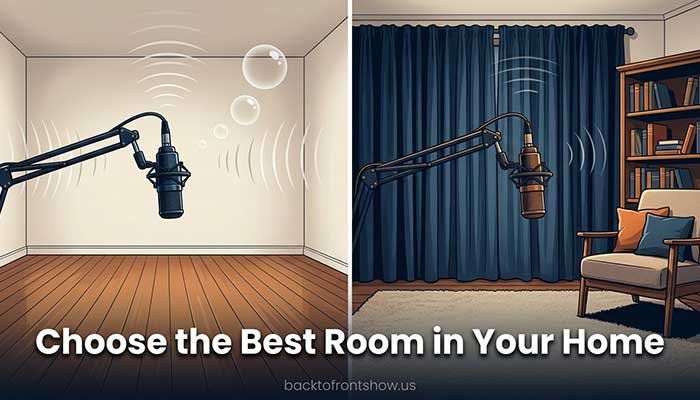
The room becomes part of the recording. Hard, empty surfaces reflect your voice back into the microphone, creating the hollow or distant sound people often describe as “echo.”
Look for a small, furnished room
A suitable room may contain:
- Carpet or a large rug
- Curtains
- A bed
- Fabric furniture
- Bookshelves
- Hanging clothes
- Cushions
- Blankets
Bedrooms, walk-in closets, and furnished home offices often work better than kitchens, garages, bathrooms, or empty living rooms.
You don’t have to record inside a closet. Clothes can absorb reflections, but cramped spaces may become uncomfortable and warm. A small bedroom with curtains and a rug may be more practical for regular recording.
Listen for background noise
Stand quietly in the room and listen for:
- Air conditioning
- Heating systems
- Computer fans
- Refrigerators
- Traffic
- Airplanes
- Plumbing
- Neighbors
- Pets
- Lawn equipment
- Fluorescent lights
- Appliances
- Phone notifications
Record 30 seconds of silence and listen through headphones. Microphones can reveal sounds that your brain normally ignores.
If possible:
- Close windows and doors.
- Turn off fans temporarily.
- Move away from a noisy computer.
- Silence phones and smart speakers.
- Record when traffic and household activity are lower.
- Place the microphone away from heating and cooling vents.
- Tell other household members when you’re recording.
Don’t turn off equipment when doing so would be unsafe. Instead, change rooms, move the microphone, or schedule the session for a quieter time.
Reduce reflections inexpensively
You can improve a room without covering every wall in acoustic foam.
Try:
- Closing curtains
- Adding a rug
- Hanging a thick blanket outside the camera frame
- Recording near a clothes rack
- Placing soft furniture behind or beside you
- Moving away from bare walls
- Avoiding the exact center of an empty room
Foam panels mainly address reflections at certain frequencies. They don’t soundproof a room or stop traffic, voices, or construction noise from entering.
Read More: How to Name a Podcast: 12 Practical Tips and Examples
Step 2: Choose a Recording Device
You can record a podcast with a computer, smartphone, tablet, or dedicated audio recorder.
Computer
A computer is usually the most flexible option because it can run recording and editing software, connect to USB microphones or audio interfaces, and store uncompressed files.
Use a computer if you plan to:
- Edit the episode yourself
- Record multiple tracks
- Interview remote guests
- Connect a USB microphone
- Use an XLR microphone through an interface
- Record video and audio together
Smartphone
A recent smartphone can record a pilot episode or a simple solo show. Place it on a stable surface rather than holding it, use airplane mode when appropriate, and keep it close enough to capture more voice than room sound.
Apple’s GarageBand guide for iPhone, for example, explains how to record with an iPhone’s microphone or a compatible external microphone.
A phone is also valuable as a backup recorder during an important session.
Dedicated recorder
A portable recorder can be useful for:
- Field interviews
- Travel
- In-person conversations
- Recording without a computer
- Creating a backup
Check how many microphone inputs it provides, whether those inputs are recorded separately, and which memory cards and file formats it supports.
Step 3: Choose the Right Microphone Setup
USB microphone
A USB microphone connects directly to a computer. It’s often the simplest option for a solo podcast or remote interview.
Advantages:
- Easy connection
- No separate audio interface required
- Compact setup
- Suitable for beginners
Limitations:
- Recording several USB microphones on one computer can be complicated
- Upgrade and routing options may be limited
- Some models capture more room sound than others
XLR microphone
An XLR microphone connects to an audio interface, mixer, or recorder.
Advantages:
- Easier to build a multi-microphone setup
- Broad choice of microphones and interfaces
- More physical control
- Individual inputs can often be recorded separately
Limitations:
- Requires additional equipment
- Costs more as a complete system
- Creates a more complicated setup
Dynamic or condenser microphone?
A dynamic microphone is often a practical choice in an untreated home room. It generally works well close to the speaker and may capture less distant room sound than a sensitive condenser microphone.
A condenser microphone can provide detailed audio, but it may also reveal more room reflections, computer fans, traffic, and other background sounds.
The microphone type isn’t the only factor. Pickup pattern, sensitivity, placement, gain, room acoustics, and speaking technique all matter.
Built-in microphone
A laptop or phone microphone can work for testing an idea. However, it often sits too far from the speaker and captures keyboard noise, room reflections, and surrounding activity.
Move the device closer and record in the quietest available space if a built-in microphone is your only option.
Step 4: Position the Microphone Correctly
Microphone placement has a major effect on the recording.
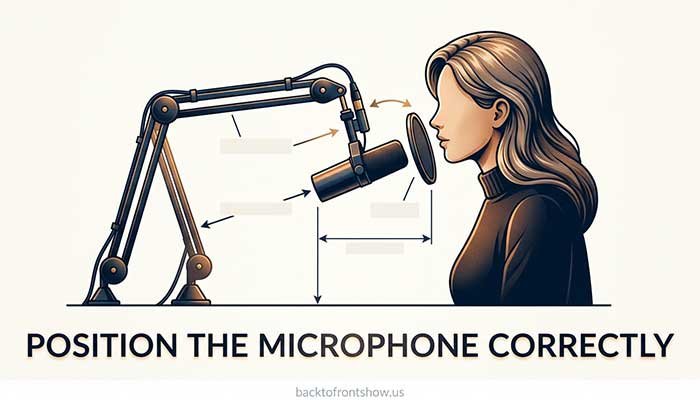
For spoken-word recording, start with the microphone approximately 3 to 8 inches from your mouth, then adjust based on the specific microphone and your voice.
Shure’s current podcast-recording guidance recommends speaking about three to six inches from a dynamic microphone in a quiet, soft-furnished space. Its broader educational material describes six to twelve inches as a common starting range. Different microphones have different ideal positions, so check the manufacturer’s instructions and test your setup. See Shure’s guides to recording a podcast episode and microphone techniques.
Use these positioning tips
- Point the microphone toward your mouth.
- Keep the distance consistent.
- Position it slightly to the side to reduce popping sounds.
- Use a pop filter or foam windscreen.
- Mount it on a stable stand.
- Keep it away from the computer fan.
- Avoid touching the stand or desk during recording.
- Don’t place papers directly beside the microphone.
- Speak naturally rather than projecting across the room.
If your voice sounds overly bass-heavy or muddy, move slightly farther away. If it sounds distant and echoey, move closer and reduce the input gain as needed.
Speak across the microphone when necessary
Strong “P” and “B” sounds can create bursts of air called plosives. Instead of aiming your breath directly into the capsule, rotate the microphone slightly or position it just off to one side.
A pop filter adds protection while helping you maintain a consistent distance.
Step 5: Connect the Equipment
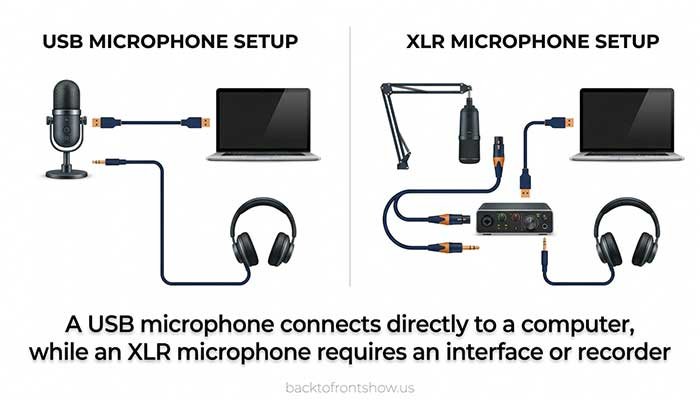
USB microphone setup
- Connect the microphone directly to the computer when possible.
- Wait for the operating system to recognize it.
- Connect wired headphones to the microphone if it has a headphone output.
- Open the recording software.
- Select the USB microphone as the input.
- Select your headphones as the output.
- Create a mono track for one microphone.
- Record and play back a test.
Avoid changing USB ports or disconnecting the microphone after opening the recording application. Some programs may lose the selected device or switch back to the computer’s built-in microphone.
XLR microphone setup
- Connect the microphone to the audio interface with an XLR cable.
- Connect the interface to the computer.
- Connect headphones to the interface.
- Select the interface as the input and output device.
- Assign the correct interface input to the recording track.
- Turn on phantom power only if the microphone requires it.
- Adjust the hardware gain while speaking normally.
- Record a test.
Dynamic microphones typically don’t need phantom power, while many condenser microphones do. Follow the manufacturer’s instructions for the specific equipment.
Two microphones in the same room
Use one microphone per person whenever practical.
Position the speakers so they aren’t facing directly toward each other across the microphones. Each person should remain close to their own microphone and avoid speaking loudly into the other person’s pickup area.
Record each microphone onto a separate track. Separate tracks allow you to adjust levels, remove noises, mute coughs, and process voices independently.
Step 6: Choose Recording Software
You don’t need expensive software to record a podcast on a computer.
Audacity
Audacity is a free, open-source recorder and editor available for Windows, macOS, and Linux.
Its official microphone setup guide recommends selecting the correct input and output, recording a single microphone in mono, using headphones, and choosing a quiet room with soft furnishings. See the Audacity microphone guide.
Good for:
- Solo recording
- Basic editing
- Beginners using Windows, macOS, or Linux
- Recording directly from a microphone or interface
Possible limitations:
- Its workflow may feel unfamiliar initially
- Remote interviews require a separate calling or recording solution
- Advanced collaborative features may require other tools
GarageBand
GarageBand is available for Apple devices and can record, arrange, process, and export audio. Apple provides a complete GarageBand user guide for connecting microphones, creating projects, and working with tracks.
Good for:
- Mac, iPhone, and iPad users
- Solo or multitrack projects
- Creators already familiar with Apple software
Possible limitations:
- Not available for Windows
- Its music-focused interface includes features podcasters may not need
On supported Macs, Apple advises setting Mic Mode to Standard for creative recording because voice-isolation modes designed for calls can change the incoming sound. See Apple’s Mic Mode guidance.
Remote recording platforms
Dedicated remote recording services may record each participant locally and upload separate tracks. Features, limits, and pricing change, so check:
- Separate-track recording
- Audio resolution
- Guest requirements
- Browser and device compatibility
- Backup behavior
- Upload status
- Recording limits
- Watermarks
- Storage and retention policies
Meeting software can also work. Zoom’s current desktop recording documentation says hosts can enable a separate audio file for each participant. This provides more editing control than a single combined file. Review Zoom’s computer-recording instructions before the session.
Step 7: Select the Correct Input and Output
Before every session, confirm:
- Input: the microphone or audio interface
- Output: your wired headphones
- Track type: mono for one microphone
- Recording channel: the correct interface input
- Sample rate: consistent across the interface and software
- Storage location: a local drive with enough free space
Selecting the wrong microphone is a common problem. A creator may speak into a good external microphone while the computer quietly records the built-in laptop microphone instead.
Tap or speak near the intended microphone while watching the meter. The correct input should respond clearly.
On a Mac, recording applications also need permission to access the microphone. Apple’s audio-input troubleshooting guide explains how to enable microphone access under Privacy & Security.
Step 8: Set Safe Recording Levels
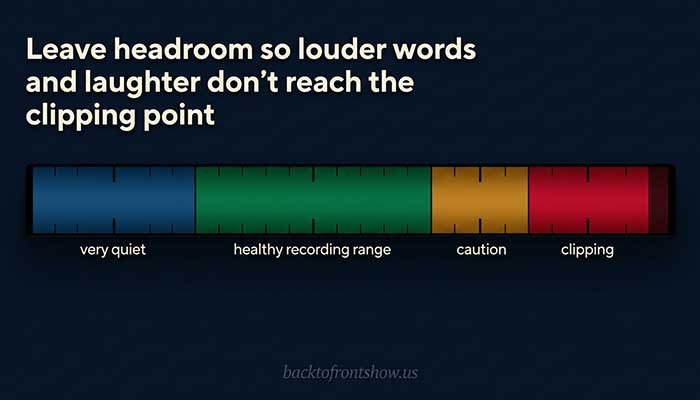
Your recording level should be strong enough to capture a clean signal without reaching 0 dBFS, where digital clipping occurs.
As a beginner-friendly target, let normal speech peak around -18 to -6 dBFS, with louder moments staying below 0.
Audacity’s current recording guide recommends normal speech peaks between -18 and -6 dB. Shure documentation for the MV5 gives a tighter typical target of -12 to -6 dB. Both recommendations leave room for unexpected louder words.
To set the level:
- Put on your headphones.
- Sit in your normal position.
- Speak at the volume you’ll use in the episode.
- Laugh or say an energetic sentence.
- Watch the recording meter.
- Adjust microphone gain—not headphone volume—until the peaks remain safely below 0.
- Record a test and listen back.
Avoid clipping
Clipping happens when the incoming signal exceeds the maximum recordable level. It can create harsh distortion that is difficult or impossible to repair fully.
Audacity’s first-recording guide warns that clipped peaks cannot be restored simply by lowering the volume afterward.
If the waveform repeatedly reaches the top and bottom of the track:
- Lower the microphone or interface gain.
- Move slightly farther from the microphone.
- Repeat the test.
- Re-record clipped material when possible.
A slightly quiet clean recording can often be raised later. A heavily clipped recording may remain damaged.
Step 9: Monitor With Wired Headphones
Headphones let you hear problems before they affect an entire episode.
Listen for:
- Hum
- Buzzing
- Crackles
- Clothing noise
- Desk vibration
- Mouth clicks
- Plosives
- Room echo
- Audio playing through speakers
- A loose cable
- A remote guest’s background noise
Closed-back wired headphones are usually the most dependable option. They reduce sound leaking back into the microphone and avoid the delay that Bluetooth devices can introduce.
Set the headphone volume at a comfortable level. Changing headphone volume should not change the recorded microphone level.
Read More: How to Choose a Podcast Topic: A Practical Step-by-Step Guide
Step 10: Record a Test Before the Full Episode
Record at least 20 to 30 seconds using the exact position and speaking volume planned for the episode.
Include:
- Normal speech
- A louder sentence
- A short pause
- Words containing P, B, S, and T sounds
- Both speakers if recording an interview
Then stop and listen through headphones.
Check:
- Is the correct microphone recorded?
- Does the voice sound clear?
- Is the room too echoey?
- Are there distorted peaks?
- Is the microphone picking up the desk?
- Is the headphone signal leaking?
- Is the left-right balance correct?
- Are all participant tracks present?
- Is the recording saved in the intended location?
Test again after changing any cable, device, input, app, or room.
I’ve found that this short test prevents more recording problems than almost any software repair tool. Discovering the wrong input after a one-hour conversation is much worse than spending two minutes checking it first.
Step 11: Prepare the Recording Session
Have these items ready:
- Episode outline or script
- Guest questions
- Correct name pronunciations
- Water
- Silent phone
- Recording consent from participants
- Local storage
- Backup plan
- Timer or clock
- Notes for corrections
- Required links or research
Use still water rather than ice if possible. Ice, cups, snack packaging, and objects placed on the desk can create distracting sounds.
Remove noisy jewelry and avoid clothing that rubs against a lavalier microphone.
Warm up your voice
Before recording:
- Drink water.
- Read a paragraph aloud.
- Relax your jaw and shoulders.
- Practice difficult names.
- Check your speaking pace.
- Take a few steady breaths.
You don’t need a theatrical voice. Aim for clear, natural delivery.
Step 12: Record the Episode
Use this simple process:
- Start the primary recording.
- Confirm that the timer and waveforms are moving.
- Start the backup recording.
- Record five to ten seconds of room tone.
- Identify the episode and participants.
- Begin the planned content.
- Watch levels occasionally without becoming distracted.
- Mark mistakes with a pause, clap, or spoken note.
- Continue from the beginning of the sentence.
- Leave several seconds of room tone at the end.
- Stop and save the primary recording.
- Stop and save the backup.
- Confirm that the files play before anyone leaves.
Room tone is a short recording of the quiet room. It may help with edits and noise reduction, although it won’t solve severe background noise.
What to do when you make a mistake
Don’t restart the entire episode.
Pause for a moment, then repeat the sentence from a natural starting point. The silent gap makes the correction easier to find during editing.
For a conversational show, you may decide that small verbal imperfections sound natural and don’t need removal.
How to Record a Remote Podcast
Remote recording adds internet connections, guest equipment, and file transfers to the process.
Before the interview
Send the guest a short checklist:
- Join from a computer when possible.
- Use wired headphones.
- Choose a small, quiet, furnished room.
- Close unnecessary applications.
- Silence notifications.
- Connect the microphone before opening the recording link.
- Keep the microphone close.
- Avoid typing or moving objects.
- Use a stable internet connection.
- Keep the browser or recording application open until uploading finishes.
Schedule a short technical check for important interviews or guests who aren’t comfortable with audio equipment.
During the interview
- Confirm the correct microphone.
- Ask the guest to record a short test.
- Listen for echo or background noise.
- Explain what happens if the connection drops.
- Record separate tracks.
- Create a local backup when practical.
- Pause if a major noise interrupts the conversation.
- Don’t let anyone close the page until files finish uploading.
Double-ender recording
A double-ender means each participant records their own microphone locally. The separate files are synchronized during editing.
This approach can provide better audio than relying entirely on the sound transmitted through a live call. It also creates additional responsibilities: every participant must start, save, and deliver the correct file.
A dedicated remote recording platform can simplify that process by recording and uploading local tracks automatically.
Always have a backup
A remote backup might be:
- The meeting platform’s combined recording
- A local recording inside each guest’s computer
- A phone placed nearby
- A secondary recorder
- A second approved recording application
The backup may sound worse than the main recording. Its purpose is to save the conversation if the primary file fails.
How to Record Two People in the Same Room
Avoid placing one shared microphone in the center of a table unless there is no alternative. Each speaker’s distance changes as they lean forward and backward, and the shared microphone captures more room sound.
A more dependable setup uses:
- One microphone per speaker
- One stand per microphone
- One pair of headphones per person
- An interface or recorder with enough inputs
- A separate track for each microphone
Try to keep each voice louder in its own microphone than in the other person’s microphone. This separation makes editing easier.
Reduce microphone bleed by:
- Keeping microphones close to the speakers
- Lowering gain accordingly
- Positioning the microphones’ least-sensitive sides toward the other speaker
- Sitting slightly apart
- Avoiding loud monitor speakers
- Using headphones
- Adding soft materials to the room
Don’t place both people on one stereo track with one person permanently on the left and the other on the right unless you have a specific production reason. Spoken-word podcasts are generally more comfortable when voices are centered in the final mix.
How to Record a Podcast on a Phone
A phone-based podcast can work when you don’t have a computer.
Basic phone setup
- Put the phone in airplane mode if doing so won’t disrupt the recording method.
- Open a reliable recording app.
- Confirm the file format and storage location.
- Place the phone on a stable, soft-isolated surface.
- Position it close to the speaker.
- Record a test.
- Check the level and background noise.
- Record the episode.
- Save and back up the file immediately.
Don’t hold the phone during recording. Hand movement can create handling noise and constantly change the distance.
For two people, place the phone between them only as a temporary solution. An external microphone system designed for the phone will usually provide more consistent results.
Should You Record Audio or Video?
Audio-only recording is simpler. Video can create additional content for YouTube and social platforms, but it also requires:
- Cameras or phones
- Lighting
- Tripods or mounts
- More storage
- Camera power
- Visual background preparation
- Video synchronization
- Longer editing and export times
If you’re uncertain, record a strong audio podcast first. Add video when you have a clear plan for how the audience will use it.
If you record video, prioritize the audio setup. Viewers may tolerate modest camera quality, but unclear, distorted, or echoey speech makes a conversation difficult to follow.
File Format, Sample Rate, and Bit Depth
For the original recording, use an uncompressed format such as WAV when your software and storage allow it.
A practical starting configuration is:
- Mono for one spoken microphone
- 44.1 kHz or 48 kHz sample rate
- 24-bit recording when supported
- WAV for recording and editing
Use 48 kHz when the project is closely connected to video. Either 44.1 or 48 kHz can work for a standard spoken-word podcast, but all connected devices and software should use compatible settings.
Audacity’s troubleshooting documentation recommends matching the project rate to the recording device and notes that 44.1 kHz or 48 kHz may be used depending on the hardware. Mismatched settings can contribute to recording problems.
You can export a compressed file for publishing after editing. Keep the original high-quality recording and project files until the episode is safely published and backed up.
How to Improve Home Podcast Audio Quality
Get closer to the microphone
Moving closer increases the amount of direct voice relative to room reflections. Lower the gain as needed so the recording doesn’t clip.
Maintain a consistent distance
Use a boom arm, fixed stand, and pop filter as physical references. Avoid leaning far back during some answers and close during others.
Reduce noise before recording
Noise reduction can help with steady, mild background sound. It may create unnatural artifacts when pushed too far. Turning off the fan before recording is better than trying to remove it later.
Record every speaker separately
Separate tracks allow individual level adjustments, edits, equalization, and noise treatment.
Use headphones
Headphones prevent speaker audio from feeding into the microphone and help you notice technical problems.
Leave headroom
Don’t record as loudly as possible. Keep peaks below 0 dBFS to avoid clipping.
Keep the signal path simple
Unnecessary adapters, hubs, wireless connections, and applications create more failure points. Use the most direct reliable connection available.
Avoid heavy processing while recording
Record a clean signal first. Excessive compression, noise removal, echo cancellation, or other permanent effects may be difficult to reverse.
Common Home Podcast Recording Problems
The recording sounds echoey
Likely causes:
- Microphone too far away
- Large or empty room
- Too much gain
- Sensitive microphone capturing reflections
Try this:
- Move closer to the microphone.
- Lower the gain.
- Add curtains, rugs, blankets, or soft furniture.
- Move to a smaller furnished room.
- Try a dynamic microphone.
The voice sounds distorted
Likely causes:
- Input gain too high
- Speaker too close during loud moments
- Clipping
- Automatic audio processing
Try this:
- Lower the input gain.
- Repeat the loudest expected sentence during the soundcheck.
- Move slightly farther away.
- Check operating-system microphone processing.
- Re-record clipped material.
The recording is too quiet
Likely causes:
- Input gain too low
- Wrong microphone selected
- Microphone too far away
- Speaking into the wrong part of the microphone
Try this:
- Confirm the selected input.
- Check the microphone’s correct speaking side.
- Move closer.
- Increase the hardware or software input gain gradually.
- Record another test.
Only one side has audio
You may have recorded one mono microphone into one side of a stereo track.
Select a mono input and record a mono track. In an existing recording, your editor may be able to split the stereo track and keep the active channel.
The recording contains buzzing or hum
Possible causes:
- Faulty cable
- Power interference
- USB hub
- Charging device
- Grounding problem
- Nearby electronics
Try this:
- Connect directly to the computer.
- Replace one cable at a time.
- Move audio cables away from power cables.
- Disconnect unnecessary devices.
- Test the system on battery power when safe.
- Try a different input or USB port.
The remote guest sounds robotic
This often comes from the live internet connection.
Use a platform that records participants locally, ask the guest to use a stable connection, close bandwidth-heavy applications, and keep a backup. If a local track was recorded, it may sound much better than the live call.
The microphone records keyboard and desk noise
Move the microphone off the desk with a boom arm or floor stand. Avoid typing while speaking, use a mouse quietly, and prevent the microphone cable from rubbing against the stand.
Home Podcast Recording Checklist
Before recording
- Quiet room selected
- Windows and doors closed
- Phones and notifications silenced
- Microphones connected
- Headphones connected
- Correct input selected
- Correct output selected
- Separate tracks assigned
- Storage space checked
- Sample rates matched
- Input levels tested
- Backup recording ready
- Outline and questions open
- Water available
- Guest permission confirmed
During recording
- Primary and backup recordings running
- Waveforms visible
- Speakers maintaining microphone distance
- Headphones being monitored
- Major mistakes marked with a pause
- Unexpected noise handled immediately
- Levels remaining below clipping
After recording
- Files saved
- Files opened and checked
- Separate tracks confirmed
- Guest uploads completed
- Backup copied to another location
- Files named clearly
- Original recordings preserved
- Recording notes saved
A Simple Beginner Setup
A practical beginner could use:
- A USB dynamic microphone
- A desktop stand or boom arm
- A foam windscreen or pop filter
- Wired headphones
- An existing laptop
- Audacity or GarageBand
- A small furnished room
- A smartphone as a backup recorder
That setup is enough to produce clear spoken-word audio when used carefully.
For beginners, I recommend mastering a simple repeatable workflow before adding more equipment. You should be able to connect the microphone, select the correct input, set the level, record a test, and create a backup without troubleshooting the entire setup each time.
Final Recommendation
To record a podcast at home successfully, focus on the fundamentals:
- Use the quietest furnished room available.
- Place a suitable microphone close to your mouth.
- Record one microphone per speaker when possible.
- Monitor with wired headphones.
- Keep normal peaks safely below 0 dBFS.
- Record and review a test.
- Save separate tracks for multiple speakers.
- Create a backup.
- Check every file before ending the session.
- Improve the room and technique before buying expensive equipment.
You don’t need a perfect home studio. You need a setup that produces understandable audio and works consistently every time you sit down to record.