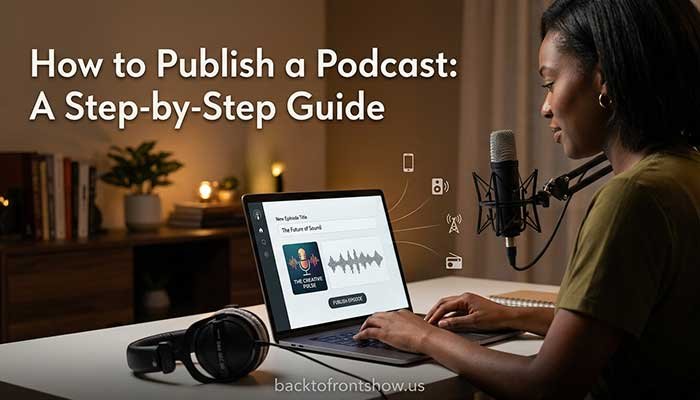
To publish a podcast, upload your finished episode to a podcast hosting service, complete your show details, and use the host’s RSS feed to submit the show to listening platforms such as Apple Podcasts, Spotify, and YouTube.
The basic process is:
- Finish and export your episode.
- Choose a podcast hosting provider.
- Add your show title, description, categories, and artwork.
- Upload a trailer or first episode.
- Copy and test the podcast RSS feed.
- Submit or claim the show on major listening platforms.
- Wait for processing or review.
- Check every public listing.
- Publish future episodes through your host.
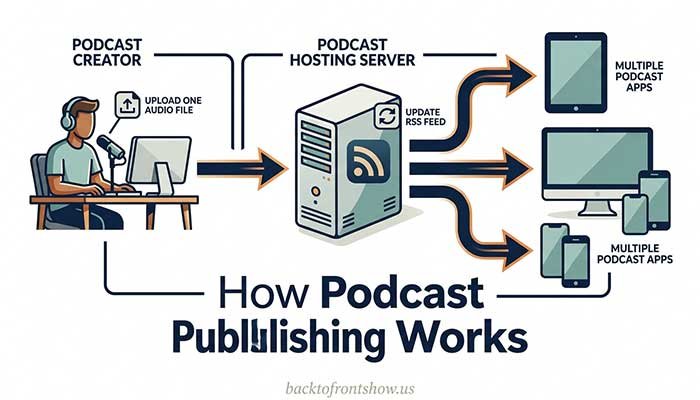
You normally upload each episode only once—to the podcast host. The RSS feed then tells connected podcast apps when a new episode is available.
The terminology can make publishing sound more technical than it is. This guide explains each part in plain language and includes a complete podcast publishing checklist.
How to Publish a Podcast
A basic podcast distribution system has three parts:
| Part | What it does |
|---|---|
| Podcast host | Stores your audio files and show information |
| RSS feed | Carries information and links from the host to podcast apps |
| Listening platform | Displays the show and lets people follow or play it |
The host and listening app aren’t necessarily the same company.
For example, you might upload an episode to one hosting service while listeners find it through Apple Podcasts, Spotify, YouTube Music, or another app.
The process looks like this:
You upload to your host → the host updates your RSS feed → podcast apps read the feed → listeners see the new episode.
This means you shouldn’t normally upload separate audio files manually to every traditional podcast directory. After the initial submission, the RSS feed handles future updates.
YouTube works somewhat differently because episodes are represented as videos. However, eligible creators can connect an RSS feed and let YouTube create static-image videos from audio episodes.
What Is a Podcast RSS Feed?
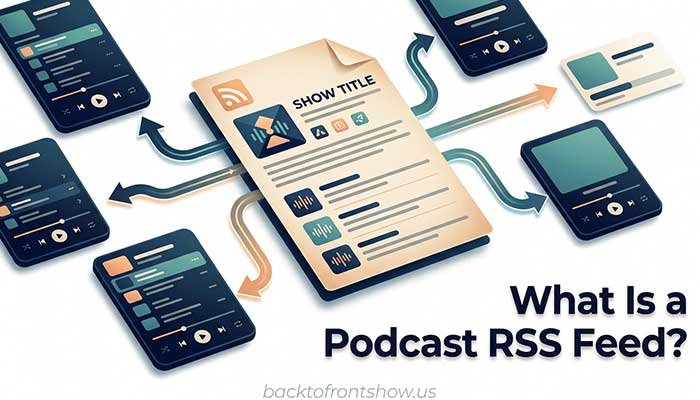
A podcast RSS feed is a public web address containing structured information about your show and episodes.
It can include:
- Show title
- Author or publisher
- Description
- Artwork
- Categories
- Language
- Explicit-content status
- Episode titles
- Episode descriptions
- Publication dates
- Audio-file locations
- Episode numbers
- Season numbers
- Unique episode identifiers
- Transcript and chapter information when supported
The feed address may look like this:
https://example-podcast-host.com/show-name/feedListeners generally don’t need to view this code. Podcast platforms and apps read it automatically.
Apple’s current podcast RSS requirements state that a feed must be publicly accessible and contain required show and episode information. Each episode must have a unique enclosure and a GUID, or globally unique identifier.
Your hosting provider normally creates and manages these technical elements.
Don’t create a different RSS feed for every platform
Use one primary feed for the public podcast unless you have a specific reason to maintain separate versions.
Multiple public feeds can create:
- Duplicate listings
- Split followers
- Conflicting analytics
- Update problems
- Confusion during host migration
- Several versions of the same episode
Keep the primary RSS feed under the control of an account you own.
Step 1: Prepare the Podcast Before Publishing
Complete the core show assets before setting up distribution.
You will usually need:
- Podcast title
- Author or publisher name
- Show description
- Primary category
- Secondary category when relevant
- Language
- Show type
- Explicit-content selection
- Copyright information
- Contact email
- Square cover art
- Trailer or first full episode
- Episode title
- Episode description
- Audio file
- Publication date
- Website address, if available
Decide whether the show is episodic or serial
An episodic show can normally be heard in any order. Examples include interviews, news, commentary, and weekly educational episodes.
A serial show is designed to be heard in sequence. Examples include investigative stories, fiction seasons, and step-by-step courses.
Select the correct format in the host. It may affect the order in which episodes appear to listeners.
Confirm the rights to everything
Before publishing, confirm that you have permission to use:
- Music
- Sound effects
- Photographs
- Illustrations
- Guest recordings
- Archival audio
- Movie or television clips
- News recordings
- Other third-party material
Save the licenses, releases, emails, receipts, and relevant terms.
Finding something online doesn’t make it available for podcast use. “Royalty-free” also doesn’t always mean free or unrestricted.
Step 2: Export the Final Audio File
Listen to the actual exported file before uploading it.
Check:
- Beginning and ending
- Speaker balance
- Background noise
- Music level
- Advertisements
- Long silences
- Accidental private conversation
- Audio on both intended channels
- Episode duration
- Distortion
- Correct episode version
Audio format
Your podcast host may accept WAV, MP3, M4A, or other formats and create the distribution file automatically.
For RSS distribution, Apple Podcasts currently accepts MP3 or AAC audio. At 44.1 or 48 kHz, Apple recommends these bit-rate ranges:
| Configuration | Recommended bit rate |
|---|---|
| Mono MP3 or AAC | 64–128 kbps |
| Stereo MP3 or AAC | 128–256 kbps |
Apple also recommends overall loudness around -16 dB LKFS, with a tolerance of plus or minus 1 dB, and a true peak no higher than -1 dBFS. Review Apple’s current audio requirements and your host’s specifications before export.
Keep an uncompressed WAV master even if you publish a compressed file. You may need it for future corrections, video production, or migration.
Mono or stereo?
Mono is usually sufficient for a straightforward spoken-word show where voices and essential audio are centered.
Stereo is useful when:
- Music depends on left-right information.
- The show uses detailed sound design.
- Spatial placement is part of the experience.
- The original material is genuinely stereo.
Don’t export a mono voice on only the left or right side of a stereo file.
Step 3: Create Podcast Cover Art
Your artwork represents the show in directories, search results, libraries, and recommendation screens.
Apple currently accepts show-cover artwork between 1400 × 1400 and 3000 × 3000 pixels when supplied through RSS, with 3000 × 3000 preferred. The file should be square, use PNG or JPG, and have a solid background without transparency. See Apple’s show-cover specifications.
Effective cover art should:
- Keep the title readable at thumbnail size.
- Use strong contrast.
- Limit unnecessary text.
- Avoid thin decorative details.
- Match the show’s tone.
- Use properly licensed visual elements.
- Remain recognizable on a phone.
- Avoid logos or images you don’t have permission to use.
Test the image at approximately one inch wide. If the title becomes unreadable, simplify the design.
In my experience, creators often judge podcast art only at full desktop size. Most listeners first see it as a small square among many other shows, so thumbnail readability matters more than tiny design details.
Step 4: Choose a Podcast Hosting Provider
The host stores your audio, generates the RSS feed, and delivers files when listeners press play.
Common hosting features include:
- Audio storage
- RSS feed generation
- Distribution tools
- Episode scheduling
- Download analytics
- Embeddable players
- Basic podcast websites
- Team access
- Transcripts
- Dynamic advertising
- Private feeds
- Monetization features
- Video support
Free podcast hosting
Free hosting may be enough for a beginner or a test show.
Spotify for Creators currently offers free podcast hosting. A show hosted there is automatically published on Spotify, and the creator can enable an RSS feed for submission to other platforms.
However, Spotify’s help documentation says it does not submit the feed to other listening platforms on the creator’s behalf. You still need to enable the feed and complete the relevant submissions. See Spotify’s official explanation of RSS feeds and distribution.
Paid podcast hosting
Paid hosts may provide additional support, analytics, team controls, websites, private feeds, or production features.
For current examples:
- Buzzsprout lists its audio plan at $15 per month when billed annually. Its free plan has upload and episode-retention limits.
- Transistor lists a Starter plan at $19 per month, including multiple shows, collaborators, analytics, and a built-in podcast website.
Prices and features change. Check the official plan pages before purchasing.
Read More: How To Start A Podcast On Spotify: Step-by-Step Guide For 2026
How to choose a host
Compare:
- Monthly or annual price
- Upload limits
- Download or bandwidth limits
- Number of shows
- Number of team members
- Analytics
- Customer support
- RSS ownership and export options
- Migration process
- Website features
- Transcript support
- Monetization tools
- Video support
- Private podcast features
- What happens after cancellation
I’d prioritize reliable RSS management, responsive support, understandable analytics, and easy migration over a long list of features you may never use.
Step 5: Create the Show in Your Hosting Dashboard
Enter the show-level details carefully.
Podcast title
Use the exact spelling, capitalization, and punctuation of your chosen name. Confirm that you aren’t accidentally creating a duplicate of another related show or brand.
Author or publisher
Use the host, organization, company, or network name that listeners should see.
Show description
Explain:
- Who the podcast is for
- What it covers
- What listeners will gain
- What format to expect
- How often it publishes, if known
- Who hosts it
Avoid filling the description with unrelated search terms. Write for a real person deciding whether to follow.
Categories
Select the most accurate primary category and a relevant secondary category when available.
Apple currently allows up to two show categories, with subcategories where supported. Categories can influence how a show appears across category pages, recommendations, and third-party services. See Apple’s category guidance.
Language
Choose the main language spoken in the show.
Explicit-content status
Label the show and episodes accurately. Platform availability for explicit content can vary by country or region.
Contact email
Use an address you monitor. Some platforms send RSS ownership-verification codes to the email associated with the feed.
Be aware that some hosts may make the RSS email publicly visible. Spotify specifically warns creators that enabling its hosted RSS feed can expose the email address contained in that feed. Consider using a dedicated podcast contact address rather than a private personal email.
Copyright
Enter accurate ownership information. Don’t use the copyright field to claim rights you don’t hold.
Step 6: Upload a Trailer or First Episode
Add the final audio file to the hosting dashboard and complete the episode details.
These normally include:
- Episode title
- Description or show notes
- Episode artwork, if used
- Season number
- Episode number
- Episode type
- Explicit-content status
- Publication date and time
- Transcript
- Chapters
- Guest links
- Sponsor information
Choose the correct episode type
Common types include:
- Full episode
- Trailer
- Bonus episode
Apple recommends considering a one- to two-minute trailer that introduces the show’s themes and samples what listeners can expect. See Apple’s episode-creation guide.
A trailer can also give you a live feed to test before releasing the first full episode.
Write a useful episode title
Lead with the subject, question, guest, or outcome.
Avoid titles that provide almost no information:
- Episode 1
- A Conversation
- Our New Show
- Weekly Update
Stronger hypothetical titles include:
- How to Price Your First Freelance Project
- What New Managers Get Wrong About Feedback
- Rebuilding a Historic Main Street Theater
- Should a Small Business Publish Its Prices?
Use dedicated season and episode-number fields instead of making the number the most important part of the title.
Write practical show notes
A useful episode description can include:
- A short summary
- Main questions covered
- Guest name and relevant role
- Resources mentioned
- Sponsor disclosure
- Chapters
- Transcript link
- Calls to action
- Relevant content warnings
Don’t copy an entire transcript into the description unless there is a clear reason and the platform supports the length.
Step 7: Publish Privately or Schedule a Test
If the host offers draft, private, or scheduled publishing, use it to verify the episode before the public launch.
Check:
- Artwork
- Title
- Show description
- Episode description
- Audio playback
- Explicit-content label
- Categories
- Author name
- Publication time and time zone
- Transcript
- Chapters
- Links
- Sponsor disclosure
Remember that scheduled times may be displayed according to your account, host, or platform time zone. Confirm the intended US release time if your audience expects episodes at a particular hour.
Step 8: Copy and Test the RSS Feed
Find the RSS feed URL in the hosting dashboard.
Don’t edit the feed code manually unless you manage your own hosting and understand the technical requirements.
Test the feed in Apple Podcasts
Apple recommends testing an RSS feed before directory submission.
On an iPhone or iPad:
- Open Apple Podcasts.
- Go to Library.
- Select Edit.
- Choose Add a Show by URL.
- Enter the RSS feed address.
- Follow the private feed.
On a Mac:
- Open Apple Podcasts.
- Select File.
- Choose Add a Show by URL.
- Enter the RSS feed.
- Select Follow.
This does not publish the show to Apple’s public directory. It lets you check how the feed appears and whether the media plays. See Apple’s official RSS feed testing instructions.
Check:
- Show title
- Author
- Description
- Cover art
- Episode title
- Episode order
- Audio playback
- Episode duration
- Explicit label
- Publication date
Fix errors in the hosting dashboard, then wait for the feed to update.
Step 9: Submit the Podcast to Apple Podcasts
To submit an RSS-based show:
- Sign in to Apple Podcasts Connect.
- Click the Add button.
- Select New Show.
- Choose Add a show with an RSS feed.
- Enter the RSS feed URL.
- Add the show.
- Review the imported details.
- Confirm your content rights.
- Add contact information.
- Choose availability, distribution, transcript, and release settings.
- Save and publish the show.
Apple validates the RSS feed and reviews new shows before making them fully available. If the feed has a problem, Apple Podcasts Connect will display an error or warning that you must address.
Review Apple’s current submission instructions because fields and options can change.
Do you have to pay to submit a free podcast to Apple?
A standard public podcast distributed through an RSS feed doesn’t require joining the paid Apple Podcasters Program.
The paid program is connected to Apple Podcasts Subscriptions and related premium features. It isn’t required simply to list a free public RSS podcast.
Step 10: Submit or Claim the Podcast on Spotify
The process depends on where the show is hosted.
If Spotify for Creators hosts the show
The podcast is automatically available on Spotify after publication.
To distribute elsewhere:
- Sign in to Spotify for Creators.
- Open the show’s settings or availability area.
- Find RSS Distribution.
- Enable the RSS feed.
- Copy the feed URL.
- Submit it to other platforms yourself.
If another provider hosts the show
Your hosting provider may help send the feed to Spotify. After the show appears, claim it in Spotify for Creators to access management and analytics.
Spotify’s current process is:
- Sign in at Spotify for Creators.
- Select the option to find an existing show hosted somewhere else.
- Enter the RSS feed or Spotify show URL.
- Request a verification code.
- Retrieve the eight-digit code from the RSS feed’s email address.
- Enter the code and complete the claim.
See Spotify’s official podcast-claiming instructions.
If the verification email doesn’t arrive, confirm which email address your host places in the feed.
Step 11: Publish the Podcast on YouTube and YouTube Music
On YouTube, a podcast is organized as a playlist containing video episodes.
You can:
- Upload full video episodes.
- Upload static-image videos manually.
- Use a third-party conversion tool.
- Connect an eligible audio RSS feed.
YouTube currently supports RSS-feed delivery for channel owners in the United States and many other regions.
To use RSS delivery:
- Open YouTube Studio.
- Create a new podcast.
- Choose the RSS-feed option.
- Enter the feed URL.
- Verify ownership through the feed email.
- Choose which episodes to upload.
- Review visibility settings.
- Wait for the episodes to finish processing.
- Review the private uploads.
- Publish the podcast.
YouTube uses the show artwork to create static-image videos for selected audio episodes. New feed episodes can then be added automatically.
According to YouTube’s RSS delivery documentation, YouTube does not distribute the show to other platforms. The connection applies to YouTube and YouTube Music.
Important details include:
- RSS ingestion is available only in supported locations.
- Initial episodes can be uploaded privately for review.
- YouTube may require branded-content disclosure for sponsorships.
- Replacing an audio file in the RSS feed does not automatically replace the published YouTube video.
- Deleting an episode from YouTube doesn’t remove it from the RSS feed.
YouTube’s current podcast distribution guide explains how podcasts appear as playlists and how creators can access podcast analytics in YouTube Studio.
Step 12: Submit to Other Podcast Apps
Other destinations may include:
- Amazon Music
- Audible
- iHeartRadio
- Pocket Casts
- Overcast
- Castbox
- Podcast Addict
- TuneIn
- Player FM
- Other regional or specialized apps
The available destinations and submission process can change.
Start with your host’s distribution page. It may provide:
- Direct submission buttons
- Current directory links
- Confirmation of automatic inclusion
- Platform-specific instructions
- Listing-status indicators
Some applications use Apple’s catalog or discover public RSS feeds through other sources. Others require a direct submission or account claim.
Don’t submit the same show repeatedly because it hasn’t appeared immediately. You may create duplicates.
Step 13: Wait for Processing and Review
Publishing isn’t always immediate.
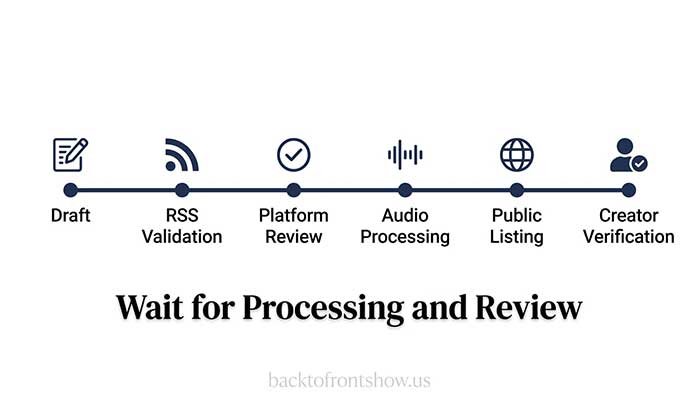
A platform may need to:
- Fetch the RSS feed
- Validate required fields
- Process the audio
- Review the show
- Index the title and description
- Generate artwork sizes
- Add the show to search
- Update regional catalogs
Leave time between submission and the planned public launch.
I usually recommend completing the major directory submissions before announcing an exact launch date. Once the listings are live, save the public links and use the correct destination for each audience.
Step 14: Check Every Public Listing
Search for the podcast manually on each platform.
Verify:
- Correct show title
- Correct artwork
- Correct author
- Correct description
- Correct category
- Correct episode order
- Correct explicit label
- Working audio
- Correct release date
- Follow or subscribe button
- Website link when supported
- No duplicate listing
Play the beginning, middle, and end of the episode.
Don’t assume that approval means every detail is correct. Most metadata problems should be fixed through the hosting provider so the RSS feed remains the main source of information.
Step 15: Save the Public Show Links
Create a document containing:
- Apple Podcasts URL
- Spotify URL
- YouTube playlist URL
- YouTube Music availability
- Amazon Music URL
- Other important app links
- Main website URL
- RSS feed URL
- Hosting dashboard URL
- Platform-management logins
Do not publish the raw RSS feed as the main listener link unless your audience specifically uses RSS readers.
A landing page containing several listening options is usually easier to share.
Step 16: Publish Future Episodes Through the Host
After completing the initial distribution, publish future episodes from the hosting provider.
The usual workflow is:
- Upload the finished episode.
- Add the title and description.
- Add season and episode details.
- Set the explicit-content status.
- Add chapters or a transcript.
- Select the publication date.
- Review the episode.
- Publish or schedule it.
- Check the RSS feed.
- Confirm that major apps update.
You don’t need to resubmit the entire podcast every week.
Podcast apps periodically read the RSS feed and add new episodes. Update times vary, so avoid promising that every platform will display an episode at the exact same minute.
What Happens If You Update an Episode?
Changing text or artwork
Edit the episode in the hosting dashboard. Connected platforms should read the updated metadata during a future feed refresh.
Replacing the audio
Some hosts allow you to replace the file while retaining the same episode entry. Confirm how the host handles the enclosure URL and analytics.
Platforms may cache the old file temporarily. YouTube’s RSS system requires a separate re-upload action when the audio file changes.
Deleting an episode
Removing an episode from the feed can make it disappear from connected apps after their next refresh. However, cached copies, downloads, third-party pages, and search results may remain.
Consider whether the episode should be unpublished, replaced, corrected, or accompanied by an editorial note.
Changing hosts
A proper host migration normally uses a permanent feed redirect. Follow both hosts’ instructions and keep the old account active until you verify the transition.
Don’t simply cancel the original host and create a new feed. That can break subscriptions, listings, and analytics.
How Many Episodes Should You Publish at Launch?
There is no universal requirement beyond the platform’s technical minimum.
A practical launch might include:
- One trailer
- One to three full episodes
- A clear schedule for the next release
Launching with several episodes lets a new listener explore more of the show. However, publishing three rushed episodes is worse than publishing one strong episode and maintaining a realistic schedule.
For beginners, I think consistency matters more than creating a large launch catalog. Prepare at least one future episode before the public launch if possible. That small buffer reduces pressure.
Common Podcast Publishing Mistakes
Uploading directly to every platform
Traditional podcast distribution normally starts with the host and RSS feed. Uploading unrelated copies everywhere can fragment the show.
Choosing a host without checking migration options
You should be able to access and redirect the feed if you change providers.
Publishing before listening to the export
Always check the actual file you plan to upload.
Using unreadable cover art
Test it at thumbnail size.
Making the description about the creator only
Explain what the listener will receive.
Selecting inaccurate categories
Choose the most relevant category, not simply the one you believe is most popular.
Ignoring the RSS contact email
Platforms may use it to verify ownership.
Publishing copyrighted music without permission
A short clip isn’t automatically safe to use.
Forgetting the explicit-content setting
Label each show and episode accurately.
Expecting immediate appearance everywhere
Processing, review, feed refreshes, and search indexing take time.
Repeatedly submitting the same feed
This can create duplicate listings or ownership confusion.
Canceling the old host too early
Complete and verify the feed redirect before closing the old account.
Podcast Publishing Checklist
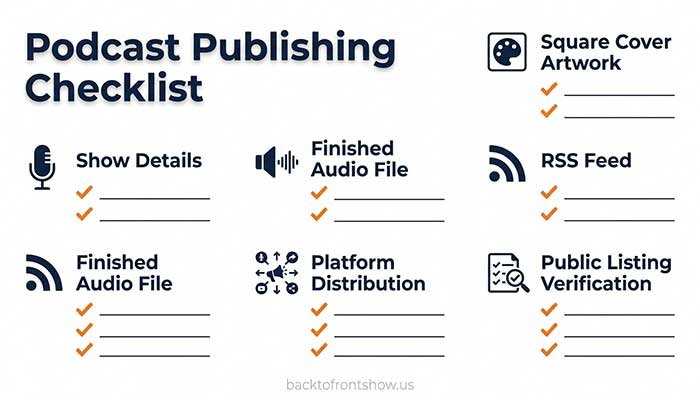
Show preparation
- Podcast title finalized
- Existing shows and brands researched
- Author or publisher selected
- Show description written
- Primary category selected
- Secondary category selected when relevant
- Language selected
- Episodic or serial format selected
- Explicit-content status confirmed
- Copyright information prepared
- Contact email monitored
- Website ready if used
Artwork
- Square image
- Correct pixel dimensions
- JPG or PNG
- No transparency when prohibited
- Title readable at thumbnail size
- Strong contrast
- Licensed images and fonts
- No unauthorized platform logos
Episode
- Final audio checked
- Master file saved
- Publishing file created
- Episode title written
- Description written
- Episode type selected
- Season and episode numbers entered when relevant
- Explicit label confirmed
- Transcript prepared or platform settings reviewed
- Chapters added when useful
- Sponsor disclosures included
- Links tested
Hosting and RSS
- Host account owned by the publisher
- Show details entered
- First episode uploaded
- RSS feed enabled
- Feed URL saved
- Feed tested
- Artwork displayed correctly
- Audio streams and downloads
- Feed email verified
- Backup copies stored
Distribution
- Apple Podcasts submitted
- Spotify published or claimed
- YouTube RSS feed connected or videos uploaded
- Other priority platforms submitted
- Processing status monitored
- Public listings checked
- Duplicate listings avoided
- Public links saved
After launch
- Episode playback tested
- Analytics access confirmed
- Publishing schedule documented
- Next episode prepared
- Website and social links updated
- Guest notified
- Promotional assets prepared
- Original files and licenses archived
Final Recommendation
The simplest way to publish a podcast is to treat the hosting provider as the center of the workflow.
Upload the episode once, maintain accurate show information, and distribute the resulting RSS feed to the platforms that matter to your audience. Test the feed before submission, verify ownership emails, and check every public listing after it appears.
The most important steps are not complicated:
- Keep control of the hosting account and RSS feed.
- Use accurate metadata.
- Confirm that you own or licensed every asset.
- Test the exported audio.
- Submit the same primary feed to major platforms.
- Allow time for processing.
- Publish future episodes through the host.
- Maintain backups and clear records.
Once the initial setup is complete, regular publishing becomes much easier.