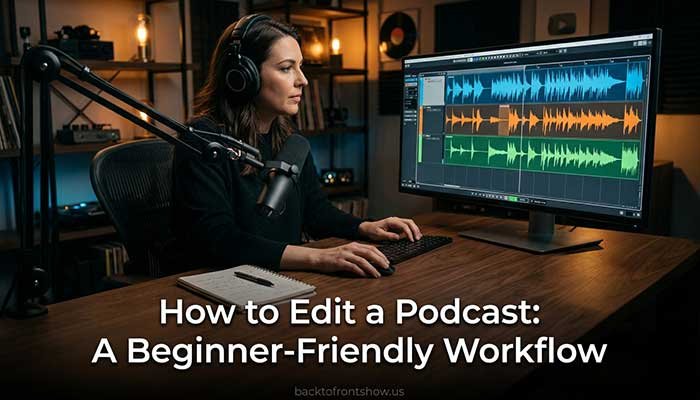
How to edit a podcast, first make a backup of the original recordings. Then import and organize the tracks, remove unwanted content, clean up distracting noises, balance each speaker, apply light audio processing, add music or ads, normalize the final loudness, and export a high-quality listening copy.
A practical podcast editing workflow follows this order:
- Back up and organize the recordings.
- Import and synchronize the tracks.
- Make the main content edits.
- Remove distracting noises and technical problems.
- Balance the speakers.
- Apply EQ and compression only when needed.
- Add music, introductions, ads, and transitions.
- Mix and check the complete episode.
- Normalize the final loudness.
- Export and perform a final quality check.
You don’t need to remove every breath, pause, or “um.” Good podcast editing improves clarity and pacing without making the conversation sound unnatural.
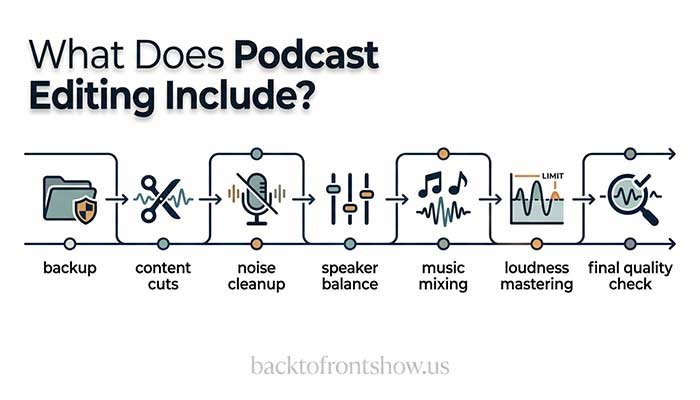
What Does Podcast Editing Include?
Podcast editing can involve several different jobs:
| Editing task | Purpose |
|---|---|
| Content editing | Removes repetition, mistakes, weak sections, or irrelevant tangents |
| Cleanup | Reduces hum, background noise, clicks, plosives, and other distractions |
| Timing | Tightens long pauses and awkward gaps |
| Mixing | Balances speakers, music, ads, and sound effects |
| Audio processing | Uses EQ, compression, de-essing, and limiting when needed |
| Mastering | Prepares the complete episode for consistent loudness and export |
| Quality control | Checks the final file for errors before publishing |
You don’t need to perform every task on every episode.
A clean solo recording may need only a few content cuts and final loudness adjustment. A remote interview with two uneven microphones may require synchronization, noise reduction, level automation, EQ, and more detailed cleanup.
In my experience, the best editing starts before the editing software opens. A quiet room, separate speaker tracks, consistent microphone distance, and a short soundcheck can prevent hours of repair work later.
Choose Your Podcast Editing Software
Most modern audio editors can cut clips, adjust levels, add effects, and export podcast files. Choose software that matches your experience, computer, format, and budget.
Pricing and features below were checked in October 2026 and may change.
| Software | Cost | Best for | Main limitation |
|---|---|---|---|
| Audacity | Free | Beginners who want a traditional audio editor | Remote collaboration requires other tools |
| GarageBand | Free on supported Apple devices | Mac, iPhone, and iPad users | Not available for Windows |
| Descript | Free plan; paid plans available | Text-based audio and video editing | Usage limits and AI credits depend on the plan |
| Adobe Audition | $22.99/month on an annual plan billed monthly | Detailed multitrack editing and restoration | Subscription cost and a larger learning curve |
Audacity
Audacity is free, open-source software for Windows, macOS, and Linux. It supports recording, timeline editing, plug-ins, noise reduction, EQ, compression, limiting, and loudness normalization.
Pros:
- Free
- Cross-platform
- Suitable for basic and detailed audio editing
- Strong documentation
- Supports common audio formats and plug-ins
Cons:
- The traditional waveform interface can feel unfamiliar
- Text-based editing and integrated remote recording aren’t its main strengths
- Some workflows require several manual steps
Audacity is a practical starting point if you want to learn the fundamentals of audio editing without paying for a subscription.
GarageBand
GarageBand is available on supported Apple devices. It supports multitrack recording and editing, effects, automation, and audio export.
Pros:
- Free for Apple users
- Familiar interface for many Mac owners
- Useful built-in processing
- Can handle multitrack spoken-word projects
Cons:
- Not available for Windows
- Its interface is designed broadly for music production
- Some podcast-specific tasks require manual setup
Apple provides a current GarageBand User Guide covering audio recording, tracks, editing, effects, and sharing.
Descript
Descript lets users edit audio and video through a transcript as well as a timeline. Its current plans include a free tier, while its paid Hobbyist plan is listed at $16 per person per month with annual billing or $24 on monthly billing. Features and usage are controlled through media-hour and AI-credit allowances, so review the official Descript pricing page before subscribing.
Pros:
- Text-based editing can be intuitive for spoken content
- Automatic transcription
- Audio and video editing in one application
- Tools for filler words, clips, and voice enhancement
Cons:
- Transcription errors can lead to incorrect cuts
- Monthly usage limits and AI-credit systems require attention
- Automated cleanup can sound unnatural when applied too strongly
- Some features require a paid plan
Adobe Audition
Adobe Audition is a professional audio editor with waveform and multitrack tools, restoration features, effects, and integration with other Adobe applications. Adobe currently lists the individual Audition plan at $22.99 per month with an annual commitment billed monthly. Check the official Adobe Audition page for current pricing and terms.
Pros:
- Detailed waveform and multitrack editing
- Strong repair and restoration tools
- Flexible effect processing
- Useful for complex productions
Cons:
- Ongoing subscription
- More tools than a simple podcast may require
- Takes time to learn
For beginners, I usually recommend starting with free software unless a paid application solves a specific problem, such as text-based editing, team collaboration, or regular video production.
Read More: How to Publish a Podcast: A Step-by-Step Guide
Step 1: Back Up the Original Recordings
Before making any changes, create at least one copy of the original audio.
A simple folder structure might look like this:
Episode 012
├── 01 Original Recordings
├── 02 Editing Project
├── 03 Music and Assets
├── 04 Exports
└── 05 Show Notes
Name files clearly:
episode-012-host.wav
episode-012-guest.wav
episode-012-backup-call.m4a
episode-012-intro-music.wav
Avoid names such as:
audio1-final-new-use-this.wavKeep the untouched recordings separate from edited copies. If an effect produces a bad result or a file becomes corrupted, you should be able to return to the originals.
For an important episode, store a second copy on another drive or approved cloud-storage service. A duplicate file on the same failing drive isn’t a complete backup.
Step 2: Create the Editing Project
Open your editing software and create a project using the same sample rate as the source recordings when practical.
For audio-only podcasts, 44.1 kHz or 48 kHz can work. Video projects commonly use 48 kHz. Avoid changing sample rates repeatedly during the workflow.
Import each recording onto a separate track:
- Host
- Co-host
- Guest
- Backup recording
- Intro music
- Outro music
- Sound effects
- Advertisement
- Room tone
Rename and color-code the tracks if the software allows it. Clear organization becomes especially valuable when an episode contains several speakers.
Keep individual speakers on separate tracks
Separate tracks let you:
- Adjust each person’s volume
- Apply different EQ
- Remove noise from only one microphone
- Mute coughs and chair sounds
- Repair interruptions
- Reduce microphone bleed
- Replace a damaged section with a backup
Editing a single combined conversation is possible, but you have much less control.
Step 3: Synchronize the Tracks
Recordings made on separate devices may not start at exactly the same moment.
Use a clap, countdown, or distinctive spoken phrase to align the waveforms. Zoom in and match the sharp waveform peaks.
After aligning the tracks:
- Listen to both tracks together.
- Check for a doubled or echoing sound.
- Adjust the alignment by small amounts.
- Mute the backup or call track if it isn’t needed.
- Group or lock synchronized clips when possible.
Watch for timing drift
Separate devices may run at slightly different clock speeds. Two tracks can begin in sync but drift apart during a long recording.
If that happens:
- Confirm that the sample rates were interpreted correctly.
- Split the drifting track at natural pauses.
- Realign later sections.
- Use a subtle stretch or speed-correction tool if necessary.
- Compare against the backup recording.
Don’t stretch speech more than necessary. Large timing changes can make a voice sound unnatural.
Step 4: Save a Working Copy
Save the project before beginning major edits.
Use versioned names:
episode-012-edit-v01
episode-012-edit-v02
episode-012-mix-v01
Save again before applying a destructive process across an entire track.
Some editors support nondestructive effects, which process audio during playback without rewriting the underlying recording. Audacity, for example, currently allows certain effects—including compression and limiting—to run as real-time track effects. Its effects documentation explains the difference between destructive and real-time processing.
Even with nondestructive editing, keep backups. Project files can become corrupted, plug-ins can change, and linked source files can be moved accidentally.
Step 5: Make the Content Edit First
The content edit determines what belongs in the episode.
Listen through the conversation and remove:
- False starts
- Repeated answers
- Long technical delays
- Off-topic sections
- Private discussion
- Unusable interruptions
- Corrections that were repeated successfully
- Statements the speaker asked to remove
- Unsupported claims that can’t be corrected
- Excessive silence that harms pacing
Focus on meaning and structure before spending time repairing every click.
Imagine a hypothetical 45-minute interview containing an eight-minute tangent that won’t be included. There is little value in carefully removing breaths and background noise from those eight minutes before making the content decision.
Preserve the speaker’s meaning
Cuts can change context. Listen before and after every significant edit.
Ask:
- Does the answer still respond to the question?
- Did the speaker’s meaning change?
- Did the edit remove an important qualification?
- Does the transition sound misleading?
- Is the emotional tone still fair?
- Did the cut create an unnatural jump?
Podcast editing should improve communication, not misrepresent the speaker.
Use markers or labels
Mark:
- Strong quotes
- Potential clips
- Unclear claims
- Sections requiring fact-checking
- Sponsor positions
- Noises requiring repair
- Possible chapter points
- Sections that may be removed
This keeps editorial decisions separate from technical cleanup.
Step 6: Tighten the Pacing
Remove pauses that feel unintentional or distracting, but don’t eliminate every gap.
Natural pauses help listeners understand ideas. They also make conversation sound human.
Consider shortening:
- Long delays caused by connection problems
- Silence while someone searches for a file
- Repeated attempts to begin a sentence
- Empty gaps after an edit
- Unusually long pauses that interrupt the flow
Keep pauses that:
- Add emphasis
- Give the listener time to process something
- Reflect emotion
- Separate major ideas
- Preserve natural conversational rhythm
A common mistake I’ve noticed is tightening every pause until speakers sound rushed. Editing should create momentum, not remove all breathing room.
Add short crossfades
Cuts made in the middle of audio can create clicks. A very short fade or crossfade can smooth the boundary.
Make cuts near a zero crossing when practical, and listen through the transition using headphones.
Step 7: Decide How Much to Remove
Filler words
Words such as “um,” “uh,” “like,” and “you know” aren’t automatically mistakes.
Remove a filler word when it:
- Interrupts understanding
- Appears repeatedly in a distracting pattern
- Weakens an important statement
- Creates an awkward delay
- Can be removed without damaging surrounding words
Keep it when removal would:
- Make the sentence sound unnatural
- Create a noticeable jump
- Change the speaker’s tone
- Remove part of another word
- Take too much time for little benefit
Automated filler-word removal can speed up a first pass. Review every cut, especially where speakers interrupt each other or the transcript is inaccurate.
Breaths
Breathing is normal. Removing every breath can make speech sound artificial.
Reduce or remove breaths when they are unusually loud, occur directly beside a cut, or distract from the content. Lowering the breath may sound more natural than deleting it.
Repetition
Remove accidental repeated phrases when the second version clearly replaces the first. Keep intentional repetition used for emphasis.
Cross-talk
When separate tracks are available, keep the intended speaker active and reduce the other track where appropriate. Don’t remove genuine reactions that improve the conversation.
Step 8: Remove Background Noise Carefully
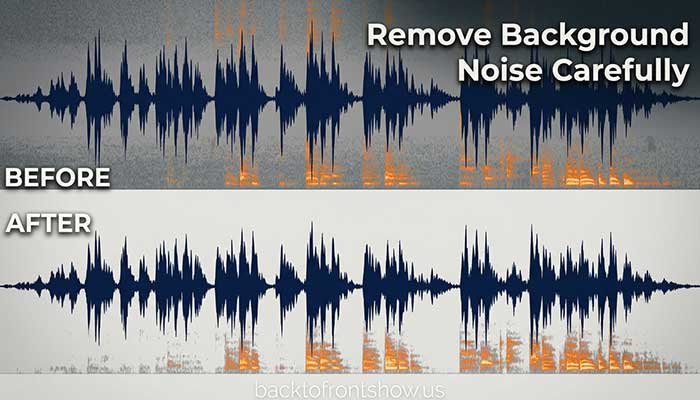
The best time to remove background noise is before recording. Editing software can reduce some noise, but it can’t rebuild a clean voice hidden under loud, changing sounds.
Noise-reduction tools work best on steady sounds such as:
- Fan noise
- Air-conditioning hum
- Mild electrical hiss
- Constant computer noise
They are less effective on:
- Barking
- Traffic horns
- Music
- Other people talking
- Construction
- Repeated chair movement
- Keyboard typing over speech
Basic noise-reduction process
In many editors, the workflow is:
- Find a short section containing only the background noise.
- Capture or learn a noise profile.
- Select the affected track.
- Apply a small amount of reduction.
- Preview the result.
- Compare the processed and unprocessed versions.
- Reduce the setting if the voice sounds metallic or watery.
Audacity’s noise-reduction documentation explains that noise reduction works best when the desired signal is much louder than the noise. It also warns that aggressive settings can introduce audible distortion.
Use the smallest amount that makes the noise less distracting. Complete silence between sentences isn’t always desirable because it can contrast unnaturally with the remaining room tone.
Use cleanup early
Noise cleanup generally belongs before compression and final level increases. Compression may raise the audible noise floor along with quiet parts of the voice.
Audacity’s current noise-removal and repair guide recommends cleaning noise early and warns that excessive processing can create a metallic or bubbling sound.
Step 9: Repair Common Audio Problems
Plosives
A plosive is a low-frequency burst caused by air hitting the microphone during sounds such as P and B.
Possible repairs include:
- Lowering the affected clip
- Applying a high-pass filter to the short section
- Replacing the word from another take
- Using spectral repair tools
- Cutting below the strongest part of the burst when possible
Prevent future plosives with a pop filter and slightly off-axis microphone position.
Mouth clicks
Zoom in and reduce or remove the click manually. Click-removal tools may help, but review the result so they don’t damage consonants.
Hydration and microphone technique can reduce mouth noise during future recordings.
Hum
Electrical hum may respond to a notch filter at the hum frequency and related harmonics. First check whether the problem comes from a cable, charger, USB hub, or grounding issue.
Clipping
Clipping occurs when the signal exceeds the recording system’s maximum level. The tops of the waveform are cut off, creating distortion.
Minor isolated clipping may sometimes be softened with repair software. Heavily clipped speech usually can’t be restored perfectly.
If a backup recording exists, replace the damaged section. Otherwise, use the least distracting version and lower the input gain during the next session.
Rustling, keyboard noise, and bumps
When the sound doesn’t overlap speech, cut or mute it and fill the gap with matching room tone.
When it overlaps speech, try:
- A short level reduction
- Spectral editing
- Using the other microphone’s recording
- Replacing the section from a backup
- Leaving the noise if repair sounds worse
Step 10: Balance Each Speaker
Listeners shouldn’t need to adjust the volume whenever the speaker changes.
Start with clip gain or track volume before adding compression.
Clip gain
Clip gain changes the level of a specific section. Use it when:
- One answer is quieter
- A speaker leans away temporarily
- One word is unusually loud
- A remote connection changes level
- Laughter is much louder than speech
Track volume
Use track volume when an entire speaker is consistently louder or quieter.
Volume automation
Automation changes volume at different points over time. It can smooth gradual changes and create precise music fades.
Balance voices by listening, not only by making the waveforms look similar. Different voices can appear visually different while sounding equally loud.
Step 11: Use EQ Only to Solve a Problem
Equalization changes the balance of frequencies in a recording.
Common podcast uses include:
- Reducing low-frequency rumble
- Softening muddiness
- Improving speech clarity
- Reducing harshness
- Matching different microphones more closely
High-pass filter
A high-pass filter reduces very low frequencies while allowing higher frequencies through. It may help with:
- Desk vibration
- Air-conditioning rumble
- Traffic rumble
- Plosives
- Unnecessary sub-bass energy
Set it by listening to the voice. If the speaker begins to sound thin, you’ve gone too far.
Muddiness
A broad, gentle reduction in the low-mid range may help a boxy or muddy voice. There is no universal frequency because voices, rooms, and microphones differ.
Clarity
A small adjustment in the upper-midrange may make speech easier to understand. Too much can make S sounds, mouth noise, and harshness worse.
Use subtractive EQ first
Instead of boosting several frequencies, try reducing the area causing the problem. Small, broad changes often sound more natural than extreme, narrow adjustments.
Don’t copy exact EQ settings from another voice and expect the same result.
Step 12: Apply Compression Gently
Compression reduces the difference between louder and quieter parts of a recording.
It can help:
- Stabilize a speaker’s level
- Control energetic words
- Make quiet phrases easier to hear
- Help several voices sit together consistently
A compressor usually includes:
- Threshold
- Ratio
- Attack
- Release
- Knee
- Make-up gain
You don’t need to master every control immediately. Start with a speech or podcast preset when available, reduce the amount, and compare it with the unprocessed voice.
Audacity explains that compression lowers audio above a threshold, narrowing the gap between loud and quiet sections. See its current compressor documentation.
Too much compression can make a voice sound flat, aggressive, noisy, or tiring. It can also make breaths and room noise more obvious.
Compression is not normalization
Compression changes the relationship between louder and quieter parts.
Normalization changes the overall level to meet a peak or loudness target.
They solve different problems.
Step 13: Control Harsh S Sounds
A de-esser reduces strong sibilance from S, SH, and similar sounds.
Use it only if those sounds are distracting. Too much de-essing can make speech sound dull or create an unnatural lisp.
Apply a small amount, then test on:
- Headphones
- Phone speakers
- Computer speakers
You may also solve the problem by adjusting microphone position during future recordings.
Step 14: Add Music, Intros, and Ads
Place each element on a separate track.
A common structure is:
- Short opening music
- Host introduction
- Main episode
- Midroll message or ad
- Main episode continues
- Closing message
- Outro music
The exact structure should fit the show. A long introduction can delay the reason the listener selected the episode.
Keep music under speech
Lower background music enough that every word remains understandable. Test on small speakers and in a noisy environment, because music that seems subtle through studio headphones may mask speech elsewhere.
Use automation or an auto-ducking tool to lower music while someone speaks.
Use licensed audio
Only use music and sound effects you created or have permission to use. Save the license, receipt, and applicable terms.
Check whether the license covers:
- Podcasts
- Commercial use
- Advertising
- Social clips
- YouTube
- Future monetization
- Ongoing use after a subscription ends
“Royalty-free” doesn’t always mean free or unrestricted.
Step 15: Mix the Full Episode
Play the episode from beginning to end without making constant edits.
Listen for:
- Sudden volume changes
- Missing words
- Repeated sections
- Awkward cuts
- Music that is too loud
- Uneven speakers
- Noise reduction artifacts
- Incorrect ad placement
- Long silence
- Abrupt transitions
- Private comments left in the file
- Audio on only one side
- Distortion
- Export errors
Take timestamped notes during this pass. Make corrections after the playback instead of stopping every few seconds.
Then listen again around every revised section.
Step 16: Normalize the Final Loudness
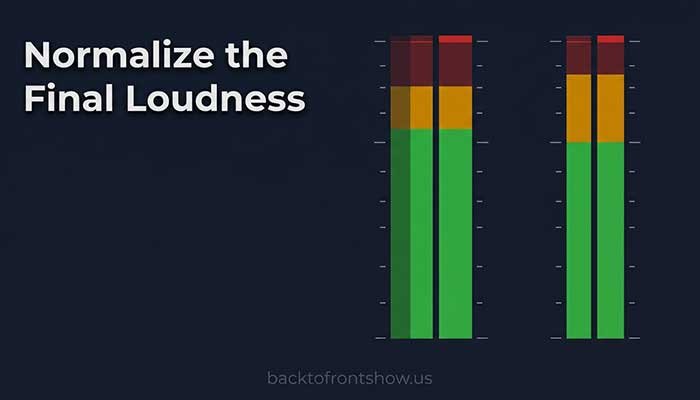
Loudness normalization adjusts the finished episode toward a consistent perceived level.
Apple currently recommends overall podcast loudness around -16 dB LKFS, with a tolerance of plus or minus 1 dB, and a true peak no higher than -1 dBFS. LKFS and LUFS are commonly treated as equivalent units for this type of loudness measurement.
See Apple’s official podcast audio requirements before exporting because platform guidance can change.
Audacity’s loudness-normalization effect can measure perceived loudness in LUFS and adjust audio toward a selected target. Its loudness-normalization guide explains the controls and measurement options.
Loudness target is not a substitute for a good mix
Normalization won’t fix:
- One speaker being much quieter
- Music covering the host
- Clipped audio
- Excessive compression
- Harsh EQ
- Background noise
- Inconsistent editing
Balance and process the episode first. Normalize near the end of the workflow.
Step 17: Export the Podcast
Keep an uncompressed master file, then create the compressed publishing file required by your host.
A practical export approach is:
Master file
- WAV
- 24-bit when supported
- 44.1 or 48 kHz
- Mono or stereo based on the project
Publishing file
- MP3 or AAC, depending on host support
- 44.1 or 48 kHz
- Mono for a speech-only mono production
- Stereo when the content genuinely uses stereo music or sound design
Apple Podcasts currently accepts MP3 or AAC for RSS-feed audio and recommends these ranges at 44.1 or 48 kHz:
| Format | Recommended bit rate |
|---|---|
| Mono MP3 or AAC | 64–128 kbps |
| Stereo MP3 or AAC | 128–256 kbps |
Apple says AAC can provide better quality than MP3 at the same bit rate, but your podcast host may recommend a specific format. Follow the host’s current requirements.
Add metadata through the host when practical
Your podcast host will normally manage the episode title, description, artwork, season, episode number, and other RSS metadata.
Embedded file metadata can still be useful, but don’t rely on it to replace the information entered into the hosting platform.
Step 18: Quality-Check the Exported File
Don’t approve the episode based only on the editing timeline. Listen to the actual exported file.
Check it on:
- Wired headphones
- Phone speaker
- Laptop speaker
- Car system when practical
Verify:
- The episode starts and ends correctly.
- Left and right channels work.
- All edits are present.
- The audio isn’t distorted.
- Speech remains understandable at a normal listening level.
- Music doesn’t cover speech.
- There is no accidental long silence.
- The correct advertisement is included.
- Private or off-record conversation is absent.
- The file duration is reasonable.
- The exported file opens and plays.
Spot-checking is faster, but a full listen is safer for important episodes.
Step 19: Archive the Project
After publishing, retain:
- Original recordings
- Editing project
- Final master
- Publishing file
- Music licenses
- Sponsor copy
- Show notes
- Transcript when available
- Cover or episode artwork
- Relevant release forms or permissions
Use a consistent retention policy. Video and lossless multitrack projects consume substantial storage, so decide what must be kept permanently and what can be removed after a defined period.
Don’t delete the source files immediately after uploading. If the wrong version was published or a platform rejects the export, you may need to return to the project.
Recommended Podcast Editing Order
A reliable production workflow looks like this:
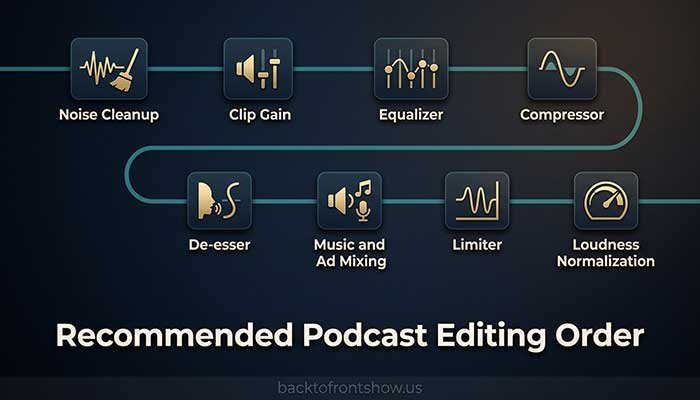
| Order | Task | Why it comes here |
|---|---|---|
| 1 | Back up files | Protects the original recordings |
| 2 | Import and sync | Creates the working timeline |
| 3 | Content edit | Removes material that won’t be used |
| 4 | Repair and noise cleanup | Fixes problems before level processing raises them |
| 5 | Clip gain and speaker balance | Creates a stable starting mix |
| 6 | EQ | Corrects tonal problems |
| 7 | Compression and de-essing | Controls dynamics and harshness |
| 8 | Music, ads, and transitions | Builds the final episode structure |
| 9 | Mix automation | Balances all elements |
| 10 | Loudness normalization and limiting | Prepares the completed mix for delivery |
| 11 | Export | Creates master and publishing files |
| 12 | Quality control | Finds errors in the actual exported file |
This order isn’t a rigid law. Some projects require a different approach. It provides beginners with a logical starting point.
Common Podcast Editing Mistakes
Editing the only copy
Always preserve the original recordings.
Cleaning audio before deciding what stays
Complete the major content edit first so you don’t spend time repairing sections you’ll remove.
Removing every filler word
Aggressive editing can make speakers sound unnatural and create audible jumps.
Applying too much noise reduction
Heavy noise processing can produce metallic, watery, or bubbling artifacts.
Using compression to fix large volume differences
Correct major level problems with clip gain or automation first. Then use compression for smaller dynamic changes.
Copying effect settings blindly
The correct settings depend on the voice, microphone, room, and recording level.
Making music too loud
Speech must remain understandable on ordinary listening devices, not just good headphones.
Ignoring the exported file
The export can contain problems that weren’t obvious in the project. Always open and check it.
Editing only visually
Waveforms help identify cuts and levels, but the final decisions should be made by listening.
Trying to repair a bad recording indefinitely
Sometimes a re-recorded sentence is faster and sounds better than extreme restoration.
How Long Does Podcast Editing Take?
Editing time depends on:
- Raw episode length
- Number of speakers
- Recording quality
- Amount of content removed
- Remote connection problems
- Music and sound design
- Video requirements
- Transcription
- Advertisements
- Approval rounds
- Editor experience
A lightly edited solo episode may require only a straightforward pass. A narrative production with interviews, music, fact-checking, and sound design can require far more work than the finished runtime suggests.
Track your editing time across several episodes. That gives you a realistic basis for planning, outsourcing, and simplifying the format.
How to Edit Faster Without Lowering Quality
- Record separate tracks.
- Use a repeatable folder structure.
- Create a project template.
- Save effect chains or presets carefully.
- Mark mistakes during recording.
- Record room tone.
- Use consistent microphone positions.
- Perform content editing before cleanup.
- Learn keyboard shortcuts.
- Keep music and standard assets organized.
- Use automation for repetitive tasks.
- Review automated transcript edits.
- Batch similar production tasks.
- Fix recurring recording problems at the source.
What I’ve learned is that faster editing usually comes from better preparation and consistent decisions—not from rushing through the timeline.
When Should You Hire a Podcast Editor?
Consider outsourcing when:
- Editing delays publication.
- Your time is better spent researching, recording, or promoting.
- The show requires advanced restoration or sound design.
- Sponsors or clients require dependable deadlines.
- Video has made the workload too large.
- You dislike editing enough that it threatens consistency.
Before hiring, ask what the service includes:
- Content editing
- Audio cleanup
- Mixing
- Music
- Loudness normalization
- Video editing
- Social clips
- Show notes
- Transcription
- Uploading
- Revisions
- Turnaround time
- Source-file storage
Two editors may use the same phrase—“podcast editing”—for very different services. Request a clear written scope and, when appropriate, a paid test episode.
Final Podcast Editing Checklist
Content
- Repetition and unusable sections removed
- Speaker meaning preserved
- Private or off-record comments removed
- Claims requiring correction handled
- Pacing feels natural
- Introduction reaches the episode value quickly
Audio
- Speakers are balanced
- Clipping checked
- Background noise is controlled
- Plosives and clicks aren’t distracting
- EQ sounds natural
- Compression isn’t excessive
- Music stays below speech
- Edits and crossfades are smooth
- Loudness and true peak meet the chosen delivery target
Export
- Correct format selected
- Sample rate confirmed
- Bit rate appropriate
- Mono or stereo selected intentionally
- Final file opens and plays
- Beginning and ending checked
- Full episode or critical sections reviewed
- Master and publishing copies saved
- Originals and project backed up
Final Recommendation
If you’re learning how to edit a podcast, begin with the decisions listeners notice most:
- Remove material that doesn’t belong.
- Keep the conversation clear and naturally paced.
- Reduce only the noise that is genuinely distracting.
- Balance the speakers before adding effects.
- Use EQ and compression lightly.
- Keep music below speech.
- normalize the finished mix to a suitable loudness target.
- Check the exported file on ordinary listening devices.
A good edit doesn’t call attention to itself. It helps the listener follow the episode without being distracted by preventable technical problems or unnecessary content.