The best podcast recording software for most remote podcasters is Riverside, especially if you want separate local audio and video tracks, 4K video, 48 kHz audio, and tools for editing and repurposing episodes in the same platform.
But Riverside isn’t automatically the right choice for everyone.
If you want to record and edit by working with a transcript, Descript is one of the strongest alternatives. If you’re trying to spend nothing, Audacity remains a practical desktop audio recorder and editor. Mac users who record locally may already have everything they need in GarageBand.
The important thing is to choose software around how you actually record—not around the longest feature list.
In my experience, beginners often focus heavily on editing effects and overlook the features that can save an episode when something goes wrong: separate tracks, local recording, reliable backups, easy guest access, and straightforward file exports.
Here are my top picks.
| Software | Best For | Remote Recording | Separate Tracks | Video | Starting Cost* |
|---|---|---|---|---|---|
| Riverside | Best overall for remote podcasts | Yes | Yes | Up to 4K on paid plans | Free plan |
| Descript | Recording + transcript-based editing | Yes | Yes | Up to 4K depending on plan | Free plan |
| Zencastr | Feature-rich free remote recording | Yes | Yes | Up to 4K | Free plan |
| Audacity | Free local audio recording | No built-in remote studio | Yes | No | Free |
| GarageBand | Mac users recording locally | No built-in remote studio | Yes | No | Free |
| Adobe Audition | Advanced audio production | Not its main focus | Yes | No | From $22.99/month |
| Hindenburg PRO | Spoken-word production | Primarily local workflow | Yes | Audio-focused | Subscription or perpetual license |
*Pricing and plan features can change. Check the provider’s current pricing before subscribing.
1. Riverside — Best Overall Podcast Recording Software
Best for: Remote interviews, video podcasts, creators who want high-quality separate tracks, and podcasters who want recording and editing together.
Riverside is my first recommendation for many podcasters because its recording system is designed specifically around remote content production.
Instead of relying entirely on the quality of the internet connection during the call, Riverside can create separate recordings for individual participants. Its current Pro plan supports up to 4K video, 48 kHz audio, separate audio and video tracks, transcription, text-based editing, audio enhancement, clips, show notes, and podcast publishing tools.
That matters more than it may initially sound.
Imagine you’re interviewing someone in another state. Their video call freezes briefly because their connection becomes unstable. A conventional internet-call recording may preserve that glitch in the final recording.
With locally captured participant tracks, the final media isn’t necessarily limited to what you heard through the live call.
Riverside pricing
At the time of this review, Riverside offers a free option. Its Pro plan is listed at $29 per month when paid monthly or $24 per month when billed annually, with the annual plan billed at $288. Riverside says Pro includes 15 hours of separate-track downloads per month.
Riverside also offers higher-level Grow, Webinar, and Business plans.
Check the official Riverside pricing page before buying because plan limits and pricing can change.
Pros
- Local-style separate participant recordings
- Up to 4K video on supported paid plans
- 48 kHz audio on Pro
- Separate audio and video tracks
- Browser-based remote recording
- Built-in transcript editing
- Audio enhancement tools
- Podcast hosting and publishing features
- Useful for turning long episodes into shorter clips
Cons
- The free plan has meaningful limitations
- Full-quality separate-track workflows can require a paid plan
- Podcasters who only record one microphone locally may not need this many features
- Advanced audio engineers may prefer a dedicated DAW for detailed mixing
Who should choose Riverside?
I usually recommend Riverside when the podcast depends heavily on remote guests or when the same interview will be published as both audio and video.
The combination of remote recording, separate tracks, video, editing, and repurposing means you can avoid piecing together several unrelated tools.
If you’re only recording a solo audio podcast at your desk, though, Riverside may be more software than you need.
2. Descript — Best for Recording and Editing in One Workflow
Best for: Podcasters who want to record remotely and edit their podcast by editing text.
Descript approaches podcast production differently from a traditional digital audio workstation.
After audio is transcribed, you can edit sections through the transcript instead of spending all your time working directly with waveforms.
Its newer Descript Rooms system also provides browser-based remote recording. Descript says each participant is recorded locally with an individual file, with video recording available up to 4K.
That makes Descript especially attractive when editing takes you much longer than recording.
You can remove sections from a conversation, work from a transcript, create clips, improve speech, and continue editing inside the same ecosystem.
What happened to SquadCast?
SquadCast is now part of Descript.
More importantly for someone choosing software in 2026, Descript now explicitly recommends using Rooms directly inside Descript rather than maintaining separate SquadCast and Descript accounts.
That’s why I wouldn’t start a new podcast workflow around standalone SquadCast today. The underlying remote-recording technology has been moving into Descript’s integrated workflow.
Descript pricing
Descript currently has a free plan.
Its published pricing shows:
- Free: $0
- Hobbyist: $16 per person/month with annual billing, or $24 monthly
- Creator: $24 per person/month with annual billing, or $35 monthly
- Business: $50 per person/month annually, or $65 monthly
The Creator plan includes 30 media hours per month and supports 4K exports. Descript’s pricing information also lists remote recording allowances separately by plan.
Check the official Descript pricing page for current limits.
Pros
- Remote recording and editing in one platform
- Separate participant recordings
- Transcript-based editing
- Up to 4K remote recording
- Studio Sound and other speech tools
- Easy removal of filler words and unwanted sections
- Useful for video and social clips
- Good choice for non-technical editors
Cons
- Media-hour and AI allowances depend on your plan
- Traditional audio engineers may find text-based editing less flexible than a full DAW
- Some advanced features require higher-priced plans
Who should choose Descript?
Choose Descript if your biggest problem isn’t pressing the Record button—it’s everything you have to do afterward.
For interview podcasts with lots of spoken content, editing from the transcript can be much faster to learn than a traditional audio editor.
3. Zencastr — Best Free Remote Podcast Recorder
Best for: Podcasters who want a surprisingly capable browser-based recording platform without immediately paying for a subscription.
Zencastr has become especially interesting because its current free Vibecastr plan includes a large set of recording features.
According to Zencastr’s pricing page, the free plan supports up to six participants, local recording, separate tracks, automatic cloud backups, 48 kHz WAV recording, 4K video, and unlimited separate audio and video recording and downloads.
That is unusually generous for a free podcast recording tool.
Zencastr has also expanded well beyond recording. The platform includes editing, transcription, hosting, podcast distribution, social publishing, analytics, and livestreaming features.
Pros
- Free plan available
- Local recording
- Separate participant tracks
- 48 kHz WAV audio
- Up to 4K video
- Automatic cloud backup
- Browser-based guest workflow
- Editing and transcription features included
- Podcast hosting and publishing tools
Cons
- The platform now contains a lot of features, which may feel overwhelming if you only want a recorder
- Product offerings and plan structures have changed significantly over time
- Podcasters already committed to another editor or host may not need the full ecosystem
Who should choose Zencastr?
Zencastr is worth trying before paying for another remote podcast recorder, particularly if you’re launching a new show with a small budget.
Its current free offering makes it one of the easiest options to test without a financial commitment.
Visit Zencastr’s official pricing page to confirm the current free-plan limits before recording an important episode.
4. Audacity — Best Free Podcast Recording Software for Desktop
Best for: Solo podcasters, local interviews, beginners, and anyone who wants free audio recording software without a subscription.
Audacity is very different from Riverside, Descript, or Zencastr.
It isn’t primarily an online podcast studio. It’s a desktop audio editor and recorder.
For local podcast production, however, that may be exactly what you need.
Audacity supports multiple audio tracks, allowing you to keep voices, music, intros, sound effects, and other audio elements separate while editing. Its documentation specifically explains how individual podcast voices can be placed on separate tracks and manipulated independently.
That makes it practical for:
- Solo podcasts
- In-person interviews
- Voice-over recording
- Editing remotely recorded WAV files
- Adding music and intros
- Cleaning up basic mistakes
- Multitrack podcast production
Audacity also offers tools for cutting, trimming, splitting, effects, and local AI transcription using Whisper.
Pros
- Free
- No recurring subscription
- Windows, macOS, and Linux support
- Multitrack editing
- Good waveform-based editing tools
- Large amount of learning material available
- Useful even if you record somewhere else
Cons
- No built-in Riverside-style remote guest studio
- Interface is less streamlined than modern creator platforms
- Video podcast production isn’t its purpose
- Some workflows require more manual setup
Who should choose Audacity?
If your podcast is audio-only and you record by yourself—or record everyone in the same room—Audacity can save you a lot of money.
It’s also a good companion to remote recording software. For example, you could record separate WAV files in Zencastr and then do the detailed audio edit in Audacity.
Visit the official Audacity website for the current version.
5. GarageBand — Best Free Option for Mac Users
Best for: Beginners recording podcasts on a Mac, iPhone, or iPad.
If you already own Apple hardware, don’t assume you immediately need another paid audio editor.
GarageBand provides a surprisingly capable recording environment.
Apple says GarageBand for Mac can create and mix up to 255 audio tracks and includes EQ, compression, panning, effects, and multitrack recording capabilities.
Apple even documents a setup for recording multiple tracks simultaneously in GarageBand, including podcast configurations using multiple microphones.
The iPhone and iPad version is also available free from Apple and supports recording, arranging, and mixing multiple tracks.
Pros
- Free for Apple users
- Beginner-friendly
- Multitrack recording
- Built-in EQ and compression
- Music, loops, and effects
- Works well for solo podcasts
- Can record multiple microphones with the right interface/setup
Cons
- Apple ecosystem only
- No dedicated browser-based remote interview studio
- Designed broadly for music creation rather than podcast production
- Podcast-specific workflow tools are limited compared with Riverside or Descript
Who should choose GarageBand?
If you have a Mac and you’re starting an audio-only show, I would try GarageBand before paying for professional recording software.
One common mistake I’ve noticed is buying software before understanding what the existing computer can already do.
For a straightforward solo show, GarageBand plus a decent microphone may be enough for quite a while.
6. Adobe Audition — Best for Advanced Audio Editing
Best for: Experienced editors, professional audio production, detailed restoration, and podcasters already using Adobe Creative Cloud.
Adobe Audition is a full professional audio workstation.
It supports podcast recording, multitrack production, detailed waveform editing, mixing, effects, restoration, and Adobe’s Essential Sound workflow.
This is the type of program to consider when you want deep control over the final audio rather than the easiest possible remote-recording workflow.
Adobe currently lists the standalone Audition plan in the United States at $22.99 per month on an annual plan billed monthly.
Check the official Adobe Audition podcast page for current pricing.
Pros
- Professional multitrack audio editing
- Excellent control over individual tracks
- Detailed waveform editing
- Strong restoration and mixing capabilities
- Good option for advanced podcast production
- Fits well into Adobe-based video workflows
Cons
- Subscription cost
- Steeper learning curve
- Overkill for many beginners
- Not primarily designed as a simple remote guest recorder
Who should choose Adobe Audition?
Use Audition if audio production itself is an important part of your workflow.
If you simply want to invite a guest, record an interview, make a few cuts, and publish it, Riverside or Descript will usually be easier.
If you’re processing complicated multitrack sessions or want detailed control over noise, EQ, dynamics, and mixing, Audition becomes much more attractive.
7. Hindenburg PRO — Best for Spoken-Word Production
Best for: Podcast producers, journalists, radio-style storytelling, interviews, and other speech-heavy projects.
Hindenburg is interesting because it has historically focused on spoken-word audio rather than trying to be a general music production application.
That makes its workflow particularly relevant to podcasters.
Hindenburg PRO is designed for radio and podcast production and is available through both subscription-style licensing and a perpetual license option. Its perpetual Version 2 license is a one-time purchase rather than a recurring subscription, although cloud-dependent services such as ongoing transcription may require separate subscription access.
Pros
- Built around speech and storytelling
- Multitrack workflow
- Suitable for interviews and narrative podcasts
- Professional audio production features
- Perpetual license option available
- Less music-production clutter than many traditional DAWs
Cons
- Smaller creator ecosystem than tools such as Audacity or Adobe
- Not my first choice for browser-based remote guest recording
- May be unnecessary for simple solo shows
- Pricing depends on the license you choose
Who should choose Hindenburg?
I’d consider Hindenburg if your podcast feels closer to radio journalism, documentary storytelling, or produced spoken-word audio than a simple video interview show.
Its focus makes more sense once your editing requirements become serious.
How to Choose the Right Podcast Recording Software
Don’t choose based on the number of features.
Start with your recording setup.
If you record remote guests
Prioritize:
- Local recording
- Separate tracks for each participant
- Automatic backups
- Simple browser-based guest access
- WAV audio exports
- Reliable upload recovery
- Video quality if you publish on YouTube
For this workflow, I’d start with Riverside, Descript, or Zencastr.
If you record by yourself
You probably don’t need an expensive remote recording platform.
Consider:
- Audacity on Windows, Mac, or Linux
- GarageBand on Mac
- Adobe Audition for advanced production
- Hindenburg for a more specialized spoken-word workflow
If you record video podcasts
Look carefully at:
- Maximum video resolution
- Separate video tracks
- Separate audio tracks
- Camera support
- Screen sharing
- Layout tools
- Clip creation
- Captions
- Social-media exports
Riverside, Descript, and Zencastr make the most sense from this list.
If several people record in the same room
Your biggest consideration may actually be your audio interface, not your software.
Ideally, each microphone should reach the recording software on its own channel.
That gives you independent control of each person’s voice.
For example, if one host speaks quietly while another is very loud, separate tracks let you adjust them individually.
A single combined recording gives you much less flexibility.
What Features Actually Matter in Podcast Recording Software?
Local recording
For remote podcasts, this is one of the most valuable features available.
Local recording means the participant’s high-quality file is captured on or through their own device rather than making the final file completely dependent on the live internet stream.
Multitrack recording
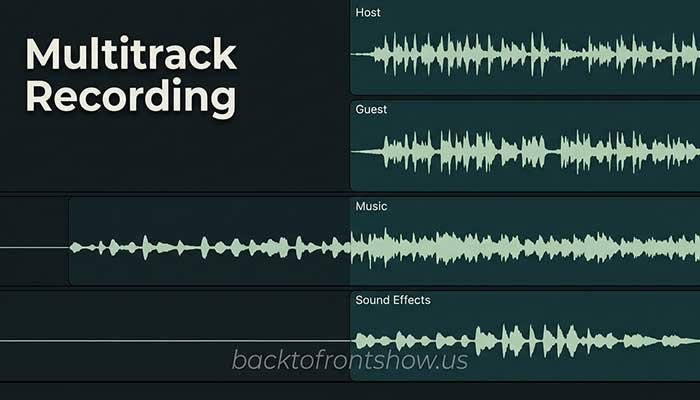
Multitrack recording keeps speakers and other audio sources separate.
Instead of receiving one finished file containing everyone, you might receive:
- Host.wav
- Guest.wav
- Music.wav
- Sound-effects.wav
Now imagine your guest coughs while you’re speaking.
If both voices are permanently mixed together, fixing the problem can be difficult.
With separate tracks, you may simply mute or reduce the guest’s track for that moment.
WAV recording
If the software gives you a choice between WAV and MP3 for your original recording, I normally recommend keeping the WAV files for editing.
MP3 uses lossy compression. That’s useful for delivery and smaller files, but starting your production workflow from higher-quality source files gives you more room to work.
Read More: Best Podcast Editing Software
Backup recording
A podcast interview may be impossible to recreate.
That’s why backup systems deserve more attention than fancy AI tools.
For an important interview, I’d rather have a dependable backup than 20 editing effects I rarely use.
Easy guest access
Your guest shouldn’t need to understand podcast technology.
Ideally, you send a link, they open it in a supported browser, choose the correct microphone and camera, and join.
The more complicated the guest workflow becomes, the greater the chance that something goes wrong before you even start recording.
Editing tools
Basic editing should let you:
- Remove mistakes
- Trim silence
- Move clips
- Adjust volume
- Add music
- Fade audio
- Process voices
- Export the finished episode
Advanced productions may also need noise reduction, compression, EQ, loudness tools, automation, and detailed track processing.
Remote Recording vs. Local Recording: Which Is Better?
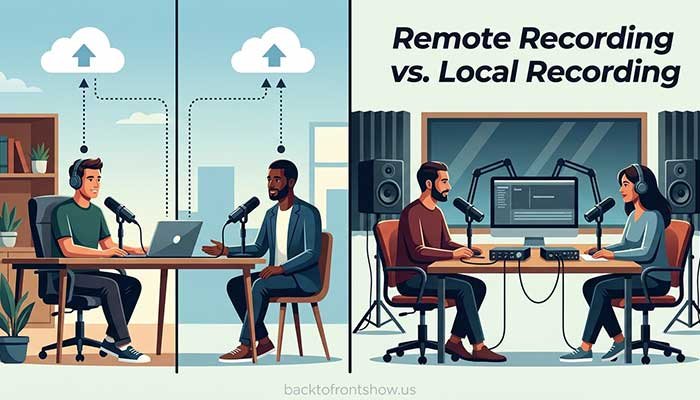
Remote recording is better when:
- Your co-host lives somewhere else
- You regularly interview guests
- You create video podcasts remotely
- You want guests to join through a browser
Local recording is better when:
- You record solo
- Everyone is in the same studio
- You want maximum control over hardware
- You don’t want a recurring cloud-software subscription
For many podcasters, the ideal setup is actually a combination.
You could use Riverside, Descript, or Zencastr to capture remote participants and then move the WAV files into Audacity, Audition, or another DAW for detailed editing.
Read More: Riverside vs Zencastr: Which Podcast Recorder Is Better?
Best Podcast Recording Software by Use Case
If you just want my simplified recommendations:
Best overall remote podcast recorder: Riverside
Best for recording and transcript-based editing: Descript
Best free online remote recorder: Zencastr
Best free desktop audio software: Audacity
Best for Mac users: GarageBand
Best for advanced professional audio editing: Adobe Audition
Best for spoken-word production: Hindenburg PRO
My Recommendation for Beginners
If I were helping a beginner choose today, I wouldn’t tell them to buy the most advanced program.
I’d first ask one question:
Are your guests in the same room as you?
If the answer is no, start by testing Riverside, Descript, and Zencastr. Record a short practice interview in each one before choosing a paid plan.
Pay attention to:
- How easily your guest joins
- Whether the correct microphone is selected
- Whether separate tracks are created
- How easily you can download the original files
- How long processing takes
- Whether editing makes sense to you
If you’re recording alone, start with Audacity or GarageBand.
You can always move to more expensive recording tools when your workflow actually requires them.
What I’ve learned from working with podcast-related content is that simpler setups are often easier to maintain consistently. The best recording software isn’t the program with the longest feature page. It’s the one that reliably captures your episode and doesn’t make publishing harder than it needs to be.